INDHOLDSFORTEGNELSE
- Deprecation of old (locked) Adjustment Reason format in OpenAPI
- Send with other order: Optimisation for many orders
- Orders: Complete order
- Shopify: Accurate delivery state in Shopify
- Picking: Setting to force scan of location
- Order Delivery: Configuration of shipping documents
- Products: Status on product integrations
- Stocktaking: Create stocktaking order by location based on stock
- Business Central: Product integrations
- Dialogs: Multi-select using Shift and Ctrl
- Orders: Cancellation of pickup orders
- Other updates
- Bug fixes
Deprecation of old (locked) Adjustment Reason format in OpenAPI
On December 19, Peak Systems sent an email regarding the deprecation of certain AdjustmentReason endpoints from OpenAPI. These endpoints are deprecated with this release (3.30).
See a draft from the email below:
As of 18 February 2026, AdjustmentReason will be removed from the OpenAPI endpoints AdjustStockByItemNumber and CreateStock, as well as from the webhook payload WebhookDataStockAdjust in the webhook named STOCK_ADJUST = 10.
This happens one year after we first announced that these fields were being deprecated.
We expect that most OpenAPI users have already migrated, but to ensure all PeakWMS customers using OpenAPI switch to the new format, here is an extra reminder with a precise deadline for updating to the new adjustment reason format.
The new format with configurable adjustment reasons gives you the option and flexibility to create your own adjustment reasons, instead of using the pre‑defined adjustment reasons that PeakWMS offers in the old format.
If you have not already switched to the new format, we recommend that you do so as soon as possible, as the old format will no longer be available after 18 February 2026. The old adjustment reasons will therefore no longer work and cannot be displayed in the PeakWMS user interface.
Send with other order: Optimization for many orders
With release 3.30, the consolidated shipping function “Send with other order” is updated to make it easier to handle massive consolidation on an order. The release includes 4 updates to the flow.
Lock order for consolidated shipping
A new action has been added on the order, allowing you to lock an order for consolidated shipping. When the order is locked, it is no longer possible to link additional consolidated‑shipping orders to it.
If orders are already linked to a main order for consolidated shipping, when it is locked, the existing consolidated‑shipping child orders remain linked, but you cannot link new orders to that main order.
You will find the button on the order. You can also unlock the order again after it has been locked.

When the order is “locked” for consolidated shipping, you can see it on the order here. If the order is not “locked”, nothing will be shown on the order.

Max number of consolidated‑shipping child orders
In the webshop integration under Settings > Integrations > Webshop Integration, you can now specify a max number of child orders that can be linked to a main order for consolidated shipping.
When the max has been reached on a main order, no more child orders will be assigned to that main consolidated order.
“Allow send with other order” must be active, to set max.
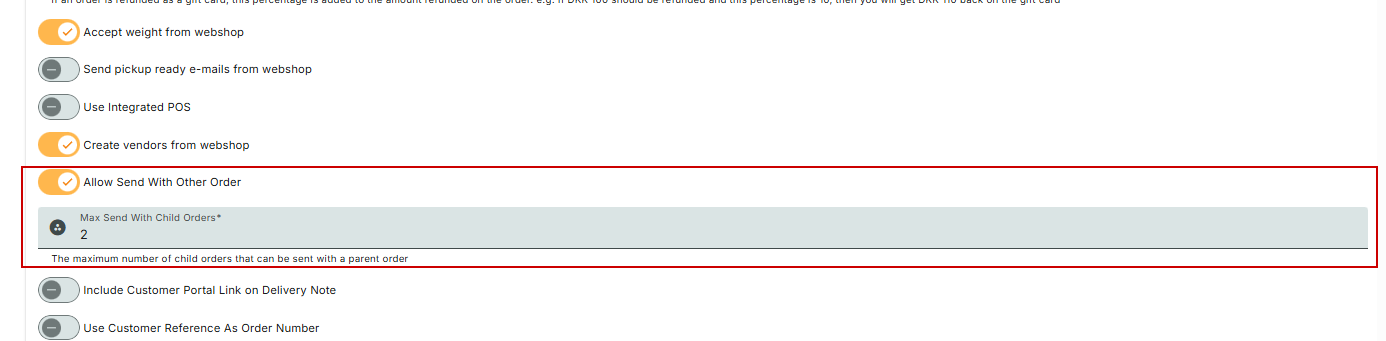
Unlink child order if everything is untouched
A button has been added to unlink a child order from a consolidated shipment. To use this function, nothing must have been picked on the orders.

If you attempt to unlink an order that has already been picked or packed, you’ll see an error stating that it is not possible to unlink the order.
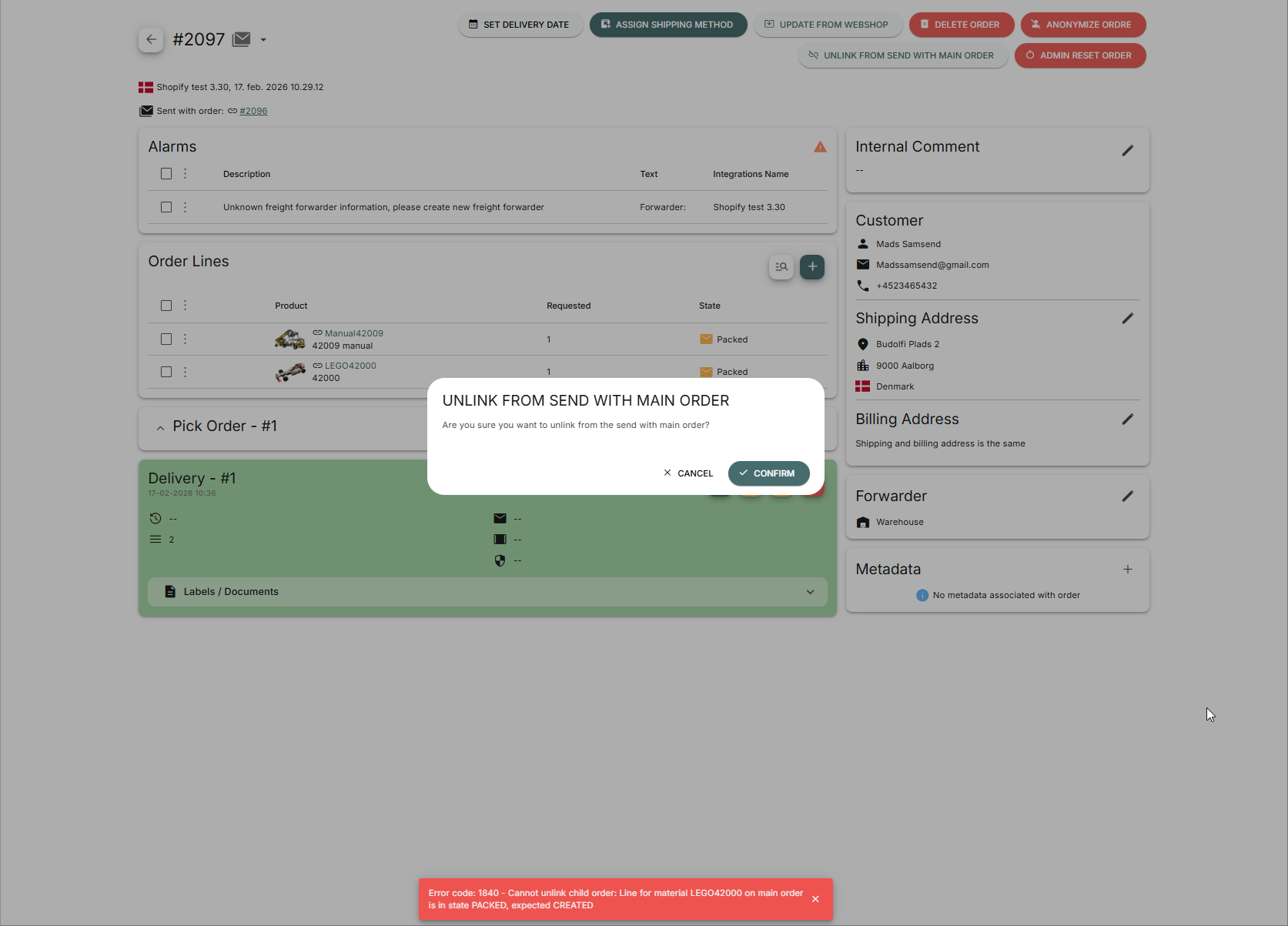
Note: If you unlink a child order from a consolidated shipment, be aware that the orders may be linked together again if an update to the child order comes from the webshop. It is therefore recommended to lock the main order for consolidated shipping.
“Select All” on manual release
If “Release orders automatically” is disabled on your PeakWMS client, a “Select All” button has been added when you release an order.
“Select All” adjusts all available products to max, so you can easily release all available lines, without having to adjust each line manually.
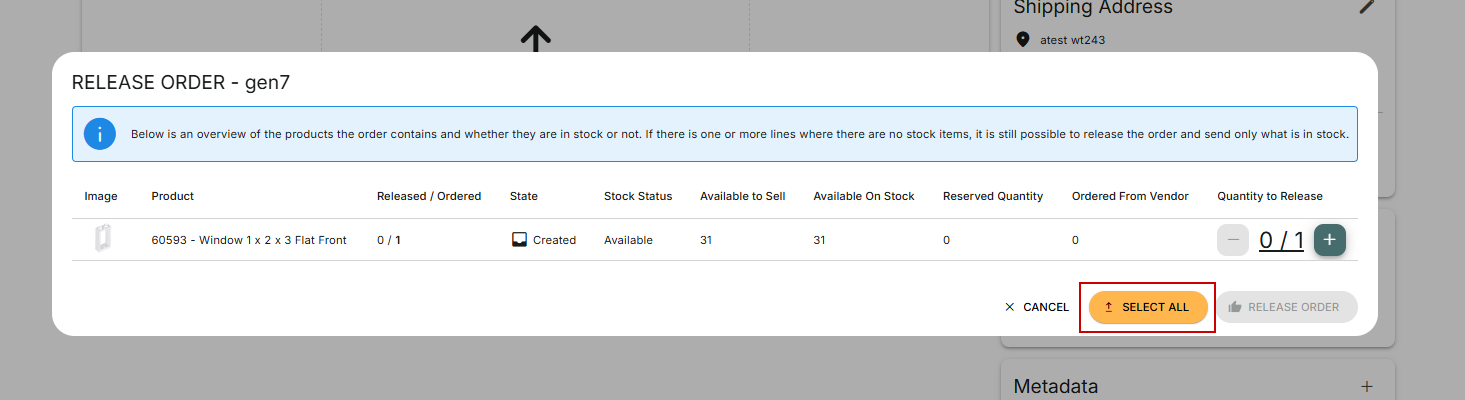
Orders: Complete order
A new action has been added on outbound orders that allows you to complete the order, even though the entire order hasn’t been shipped.
The function is designed for handling B2B orders, where not all order lines are shipped to the customer, e.g. due to line cancellations.
If the order is completed in PeakWMS after being partially delivered, the order will remain untouched by PeakWMS from that point. The order is considered completed.

Shopify: Accurate delivery state in Shopify
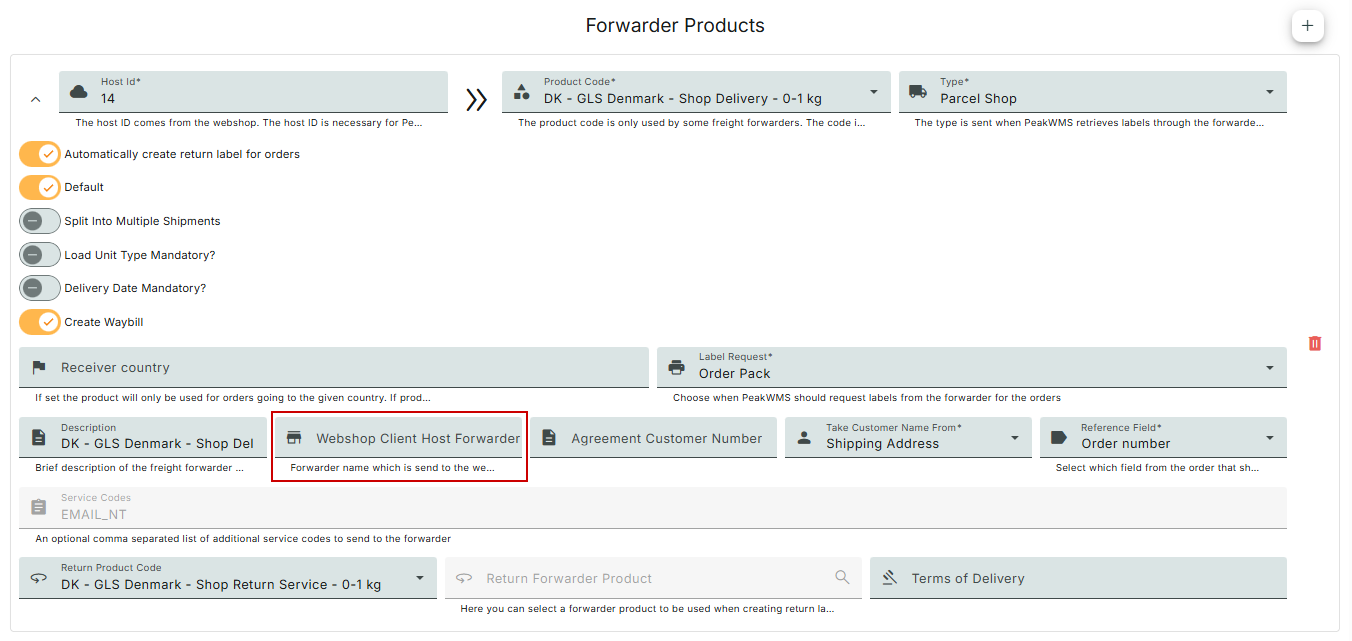
A new field is added on the shipping method for “Forwarder name”. The field is used to tell Shopify which forwarder is responsible for delivering the specific shipping method.
The purpose of the field is to enable PeakWMS to send more precise tracking information to Shopify.
You can find the field by expanding the forwarder product in Settings. The field is called “Webshop client host forwarder name”. You must ensure that the forwarder name in this field matches the forwarder name Shopify expects.
Picking: Setting to force scan of location
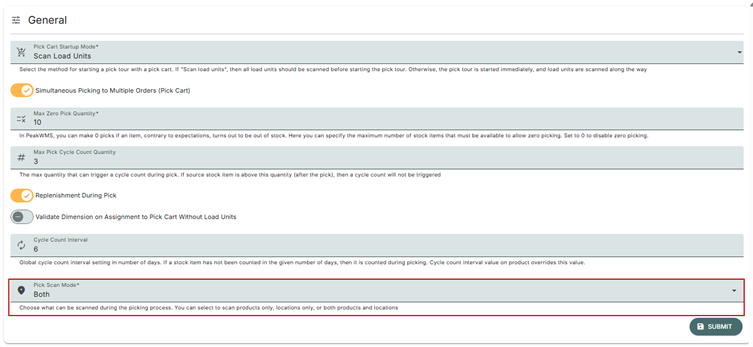
A new setting has been added under Settings > Picking > Setup. Here you can define a “Pick scan mode”.
You can choose between:
- Product
- Location
- Both
If you choose “Location”, you can only confirm products in the pick by scanning the location.
If you choose “Both”, you can confirm products by scanning either the product barcode or the location.
The function is intended for customers who have multiple locations with the same product close to each other, to ensure that picking is done from the correct stock and location.
Order Delivery: Configuration of shipping documents
A new menu item has been added in Settings. Under “Order delivery”, you will find configuration options for the “Order delivery” function in PeakWMS.
In “Order delivery” you have the following configuration options:
- Print shipping label during order delivery – If disabled, shipping labels can only be printed manually in the order details page.
- Default to shipping address on customs document, if importer address is unavailable – The delivery address will be used when generating customs documents if an importer address is not available.

Products: Status on product integrations
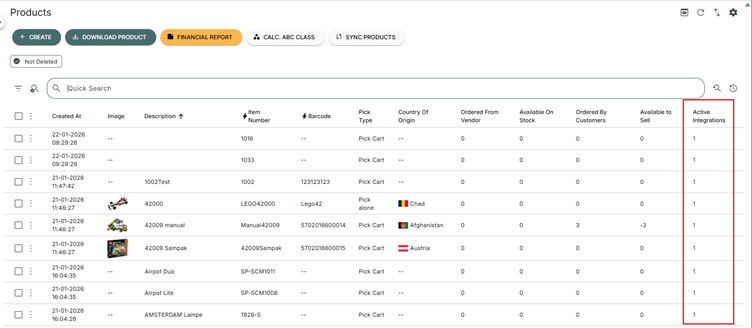
On the product in PeakWMS, you have so far had a “Status” field. The status field has been an indicator of whether the product was active or not on your webshop.
This field is now removed and replaced by a field that shows how many product integrations the product has.
The field is called “Active integrations” and must be added via table settings in the Products dialog.
Stocktaking: Create stocktaking order by location based on stock
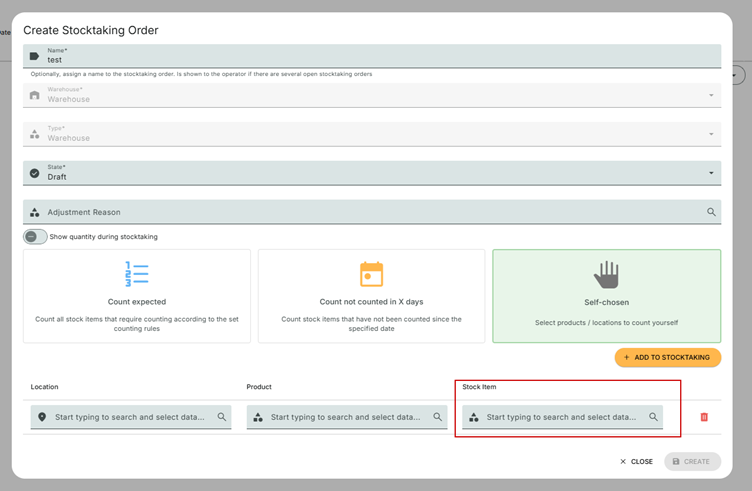
It is now possible to create a stocktaking order line based on a specific stock item. When creating a stocktaking order, an extra field has been added when you add a line. Here the user can select a specific stock item that the stocktaking order line should be based on.
When a stock item is selected, the location that the stock is placed on is added to the stocktaking order.
Business Central: Product integrations
A nightly background job has been created for Business Central to fetch products that have been created or updated within the last 24 hours.
Note: The Business Central app must be updated for the nightly job to run.
Dialogs: Multi-select using Shift and Ctrl
Two options have been added to make it easier to select multiple lines in admin dialogs:
- Multi‑select with Shift: By holding the Shift key when selecting lines in a dialog, you can mark multiple lines at once, instead of clicking each line individually.
- Multi‑select with Ctrl: Click directly on the line to select a line in the dialogs. For example, in the order dialog, you can hold the Ctrl key to enable clicking directly on lines to select them. If Ctrl is not held, you must click the checkbox at the far left of the line.
- If both Ctrl and Shift are held, you can select a range of lines by clicking directly on the lines, instead of using the checkboxes.
Orders: Cancellation of pickup orders
We have been made aware that it can be difficult to detect, when a pickup order has been cancelled.
Pickup orders that are cancelled will often remain in the system for a long time before anyone notices that the customer no longer wants the order, because PeakWMS does not accept cancellations from the webshop after the order has been picked and packed.
If a pickup order is cancelled after it has been picked and packed, PeakWMS will now accept the cancellation from the webshop, making it easier to get an overview of which pickup orders have been cancelled.
It is recommended to create a dashboard component of the type “Generic search” that points to the “Outbound Orders” dialog. The orders should have your “pickup” shipping method and status “Cancelled” as criteria for the search.
Remember to save the search in “outbound orders” in order to create the dashboard component.
Note: Allowing cancellation of orders only applies to pickup orders that have not yet been scanned as “Picked up”.
Other updates
OpenAPI: It is now possible to create a return order via OpenAPI independently of the return portal.
Stocktaking orders: Remove lines from a stocktaking order if stocktaking of the product/location is no longer necessary, for example because it was counted during picking.
Stocktaking orders: Progress bar on stocktaking orders, so it is possible to see how much of the stocktaking order has been counted. The field must be added via table settings. The field is named: “Locations counted (%)”.
Shopify: Include Shopify PO number when fetching orders from Shopify.
Reservations: When deleting stock that has reservations, PeakWMS will now clean up other affected reservations.
Reservations: Blocking move of reserved stock if the move is to another warehouse than the warehouse where the reservation resides.
Reservations: When changing status on reserved stock, the user is warned that reservations will be deleted if the stock status is changed.
“Send with other order”: When sending orders together, the reference number and order number are now added to the packing slip for all orders included in the consolidated shipment. The list is comma‑separated.
Order label: It is now possible to add the field “Postal code” to the order label. The field is added in the label template under Settings > Templates > Label Templates. You must manually add the field to your order label template.
Replenishment: If replenishing to a load unit in another warehouse, the load unit is moved to the warehouse you replenish from.
Shipmondo: Find nearest pickup point via product code instead of carrier.
Reports: “Parked orders to handle” is added as a report under the “Reports” menu item. The report can be used for generic searches on the dashboard.
Load unit status: Resetting a load unit via Tools > Load unit > Load unit status now sends a stockAdjust on items that have been placed on the load unit, if the load unit contains available stock.
HostedShop: Option to configure language on HostedShop.
Label templates: Show label template type at the top when a label template type is selected.
Bug fixes
Homerunner: Incorrect time on track & trace from Homerunner.
Business Central: Error when closing purchase orders.
Highrunner: “Reserved for other order” locks orders to Highrunner, even when stock exists on normal locations.
Alarms: Delete alarms of the type “Product does not exist” when the product is imported on an order.
Orders: The “Open item number in new tab” function on order lines has been missing. The function has now been restored.
Purchase orders: Error when expanding purchase orders – purchase order lines not visible.
Purchase orders: Not possible to export purchase orders due to error “Not a legal OleAut Date”.
Export: Error when exporting outbound order lines due to the “Product” column.
Receiving: Not possible to use automatic assignment of lot number together with “Receive with automatic selection of purchase order”. The two functions now work together.
Pick and pack alone: When an error occurred when fetching a label, the error was not clear. There is now an option to continue without a label or fetch the label again if it could not be retrieved for the order.
Stocktaking: Not possible to perform stocktaking on a location with products that are included in many bundles.
Bundles: Quick search not possible via Admin > Stock > Material children.
Orders: Updating orders from the webshop removed the packing time. The “Packing time” field is now ignored on updates from the webshop.
Dashboard: Statistics on goods owners showed an error when accessing the dashboard. The error has been fixed so dashboard components’ data can be viewed again.
Var denne artikel nyttig?
Fantastisk!
Tak for din feedback
Beklager, at vi ikke var nyttige
Tak for din feedback
Feedback sendt
Vi sætter pris på din indsats og vil forsøge at rette artiklen