Guide to setting up the PeakWMS app in Shopify
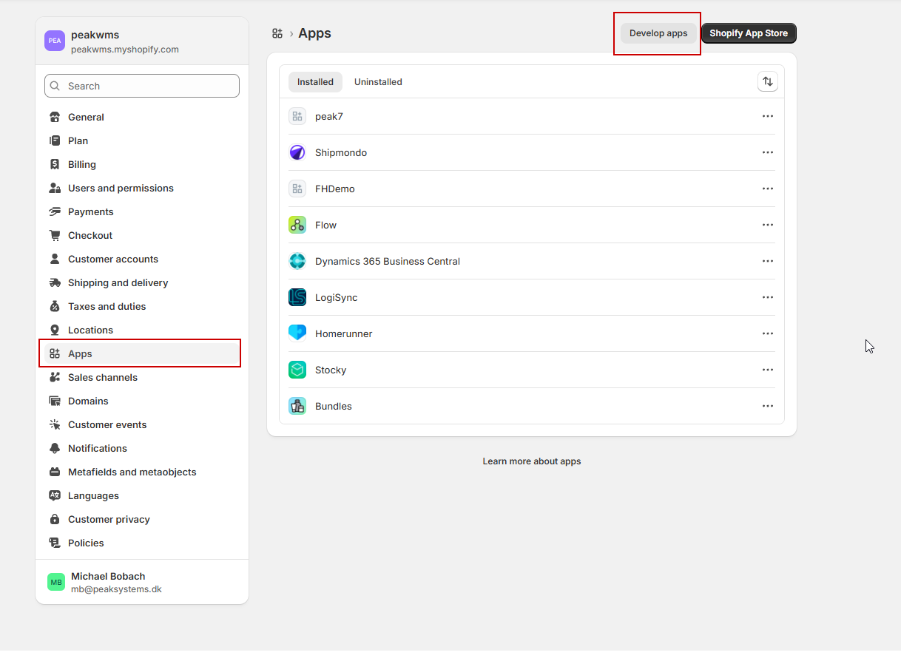
To create a PeakWMS app in Shopify, go to Settings > “Apps” in Shopify and click “Develop apps”.
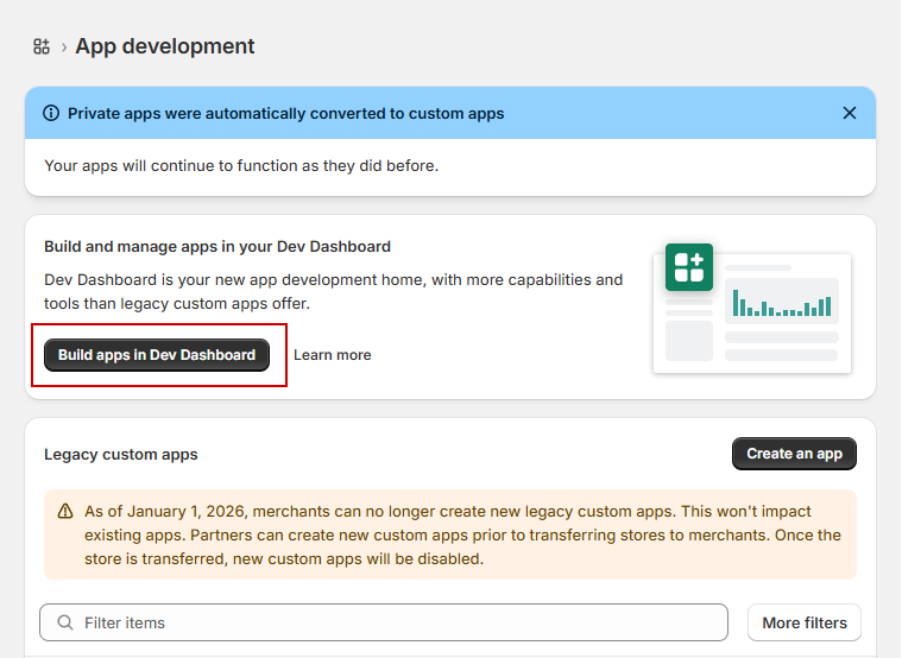
Then click “Build apps in Dev Dashboard”.
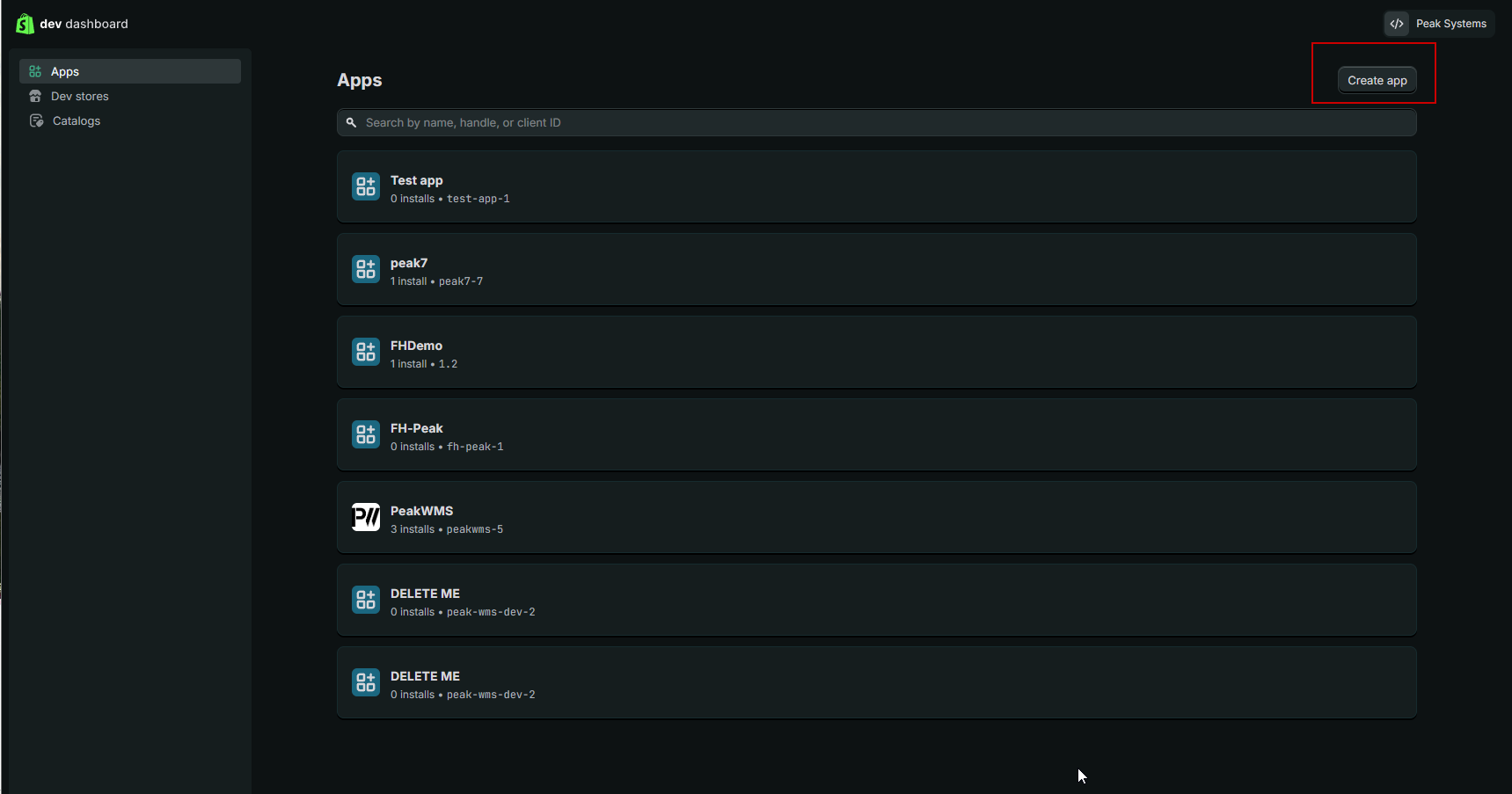
Here, click “Create app” to create a new app.
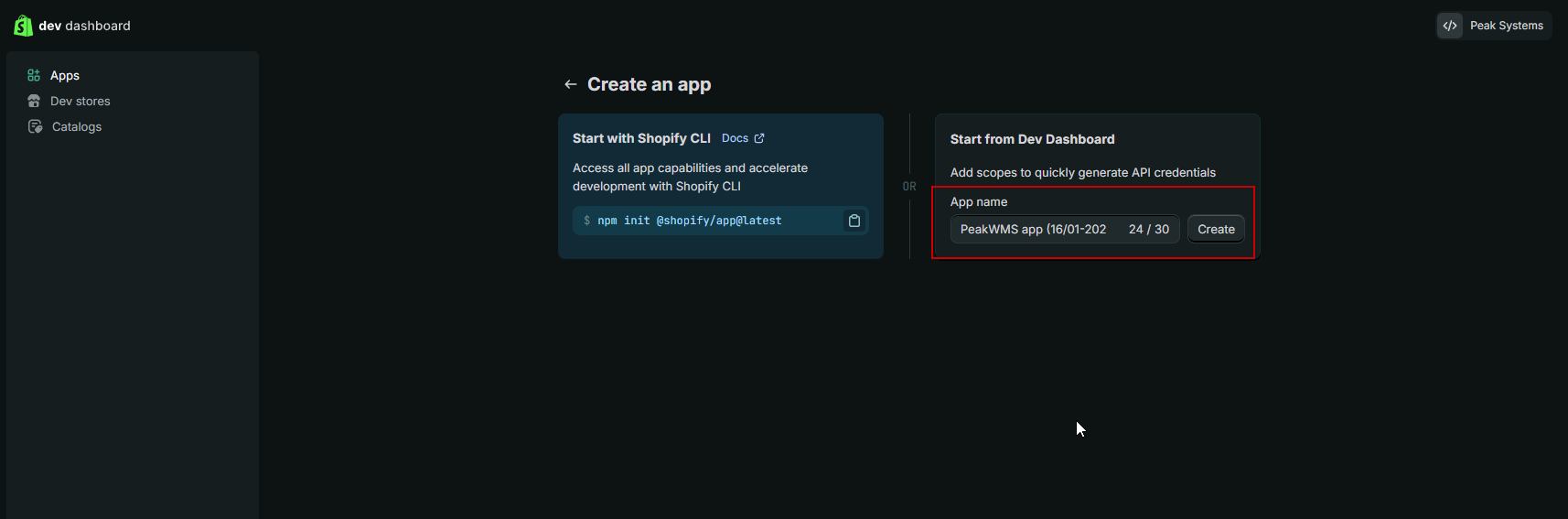
Enter a name for your app. For easier overview of your apps, we recommend naming it “PeakWMS”. Click “Create” to create the app.
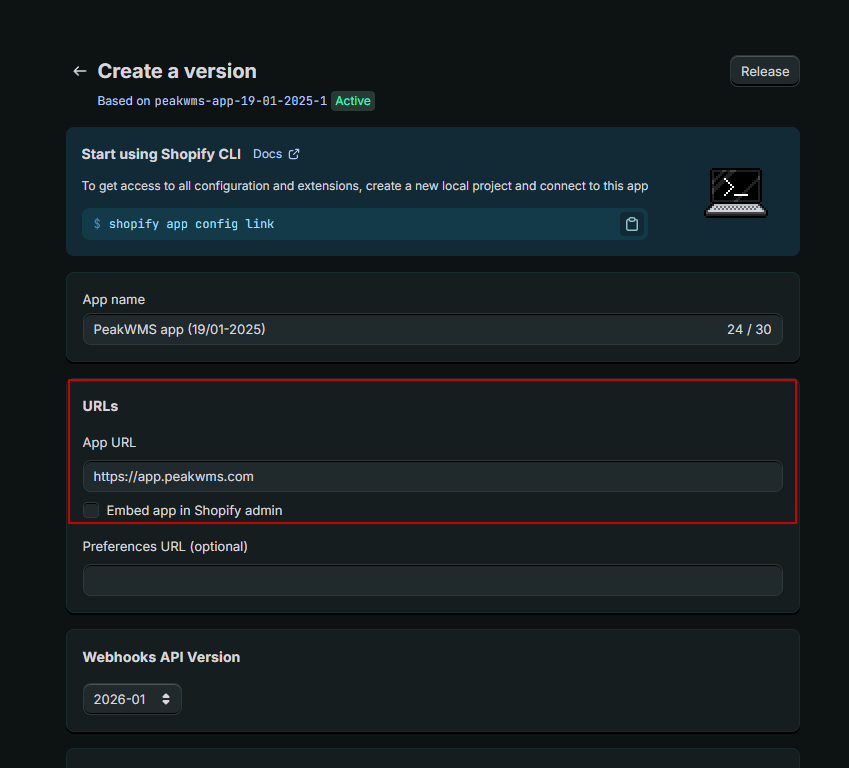
In the URLs box, under App URL, enter:
The field “Embed app in Shopify admin” must not be enabled.
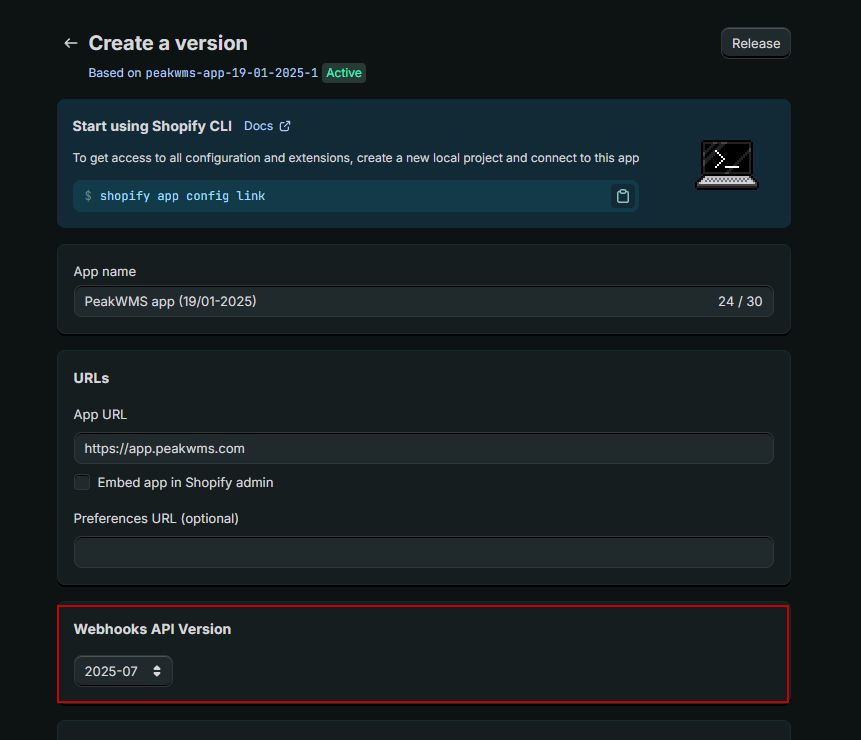
Next, make sure to select a Webhook subscription. Here you must select version 2026-04.
Then click “Select scopes” to choose the permissions for the app.
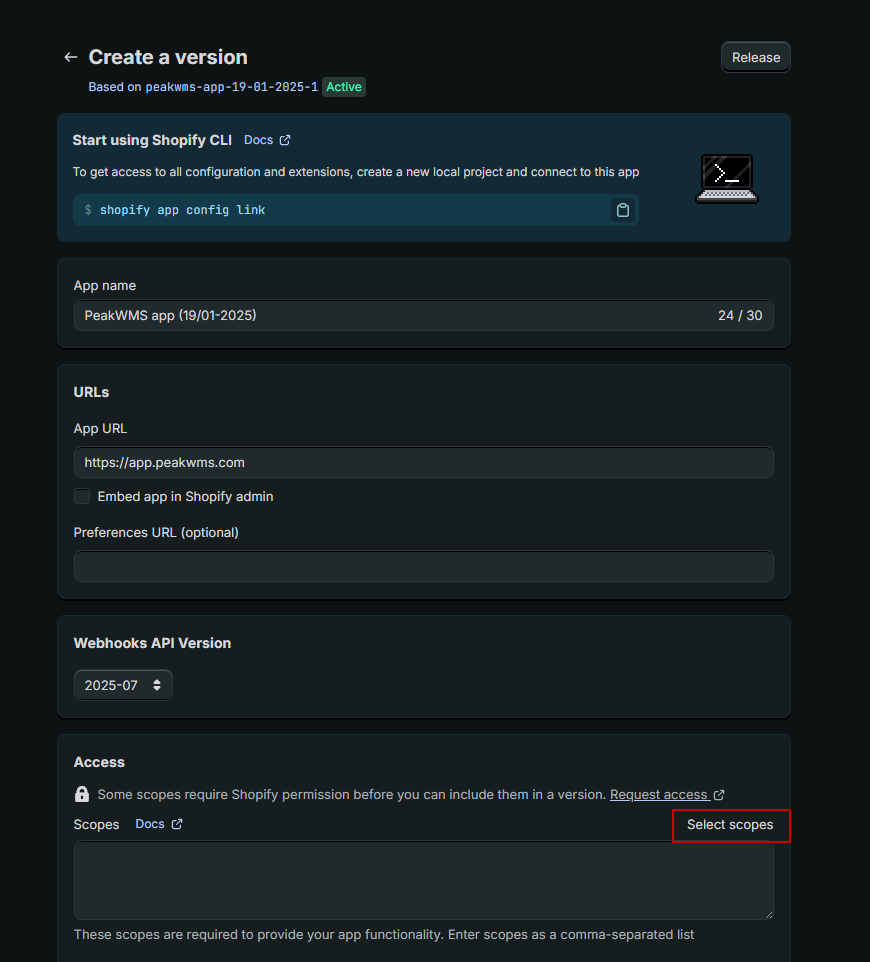
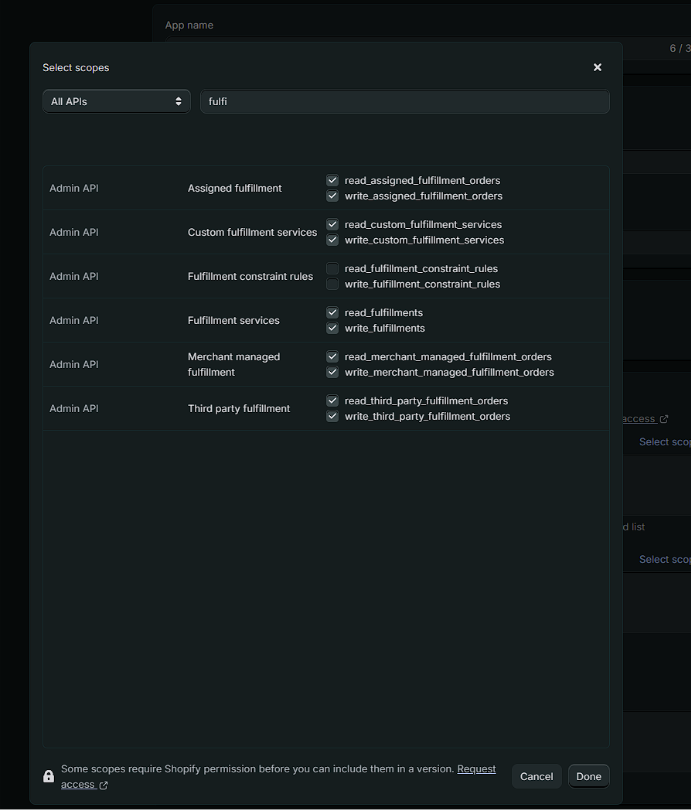
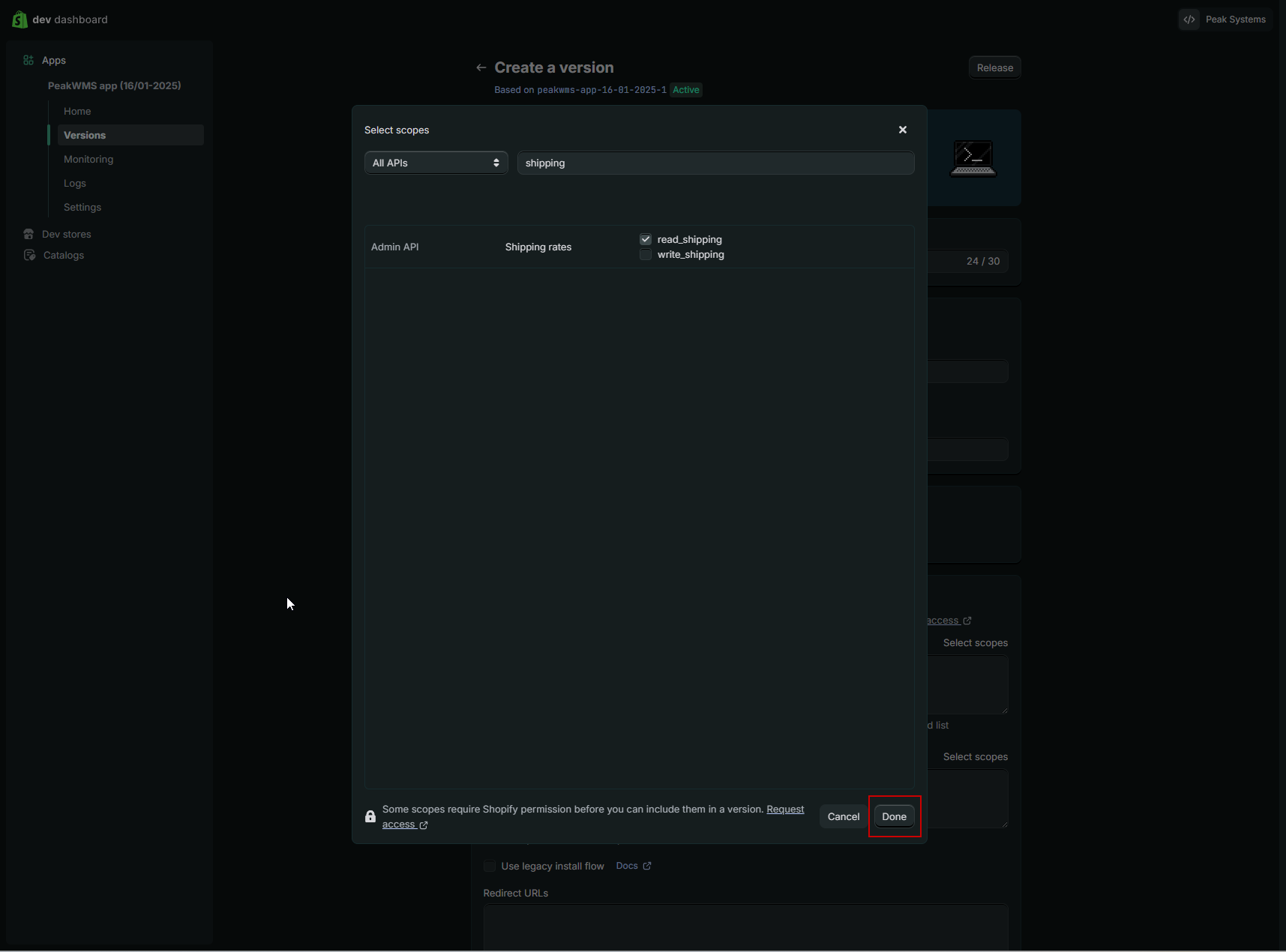
Under “Select scopes”, you must specify which permissions are granted to the app. You must grant access to the following scopes in your Shopify app:
Fulfillment
read_assigned_fulfillment_orders
write_assigned_fulfillment_orders
read_custom_fulfillement_services
write_custom_fulfillement_services
read_fulfillments
write_fulfillments
read_merchant_managed_fulfillment_orders
write_merchant_managed_fulfillment_orders
read_third_party_fulfillment_orders
write_third_party_fulfillment_orders
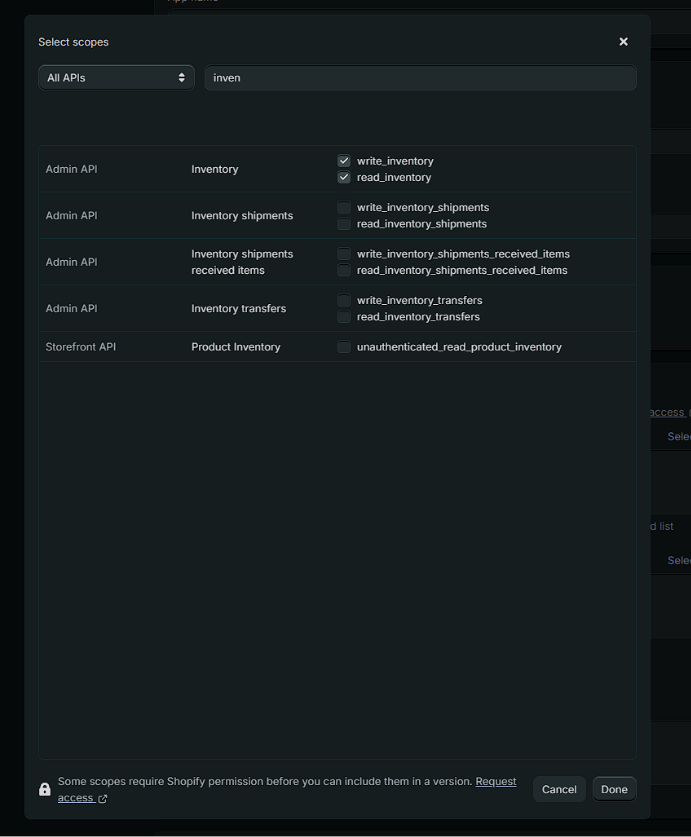
Inventory
write_inventory
read_inventory
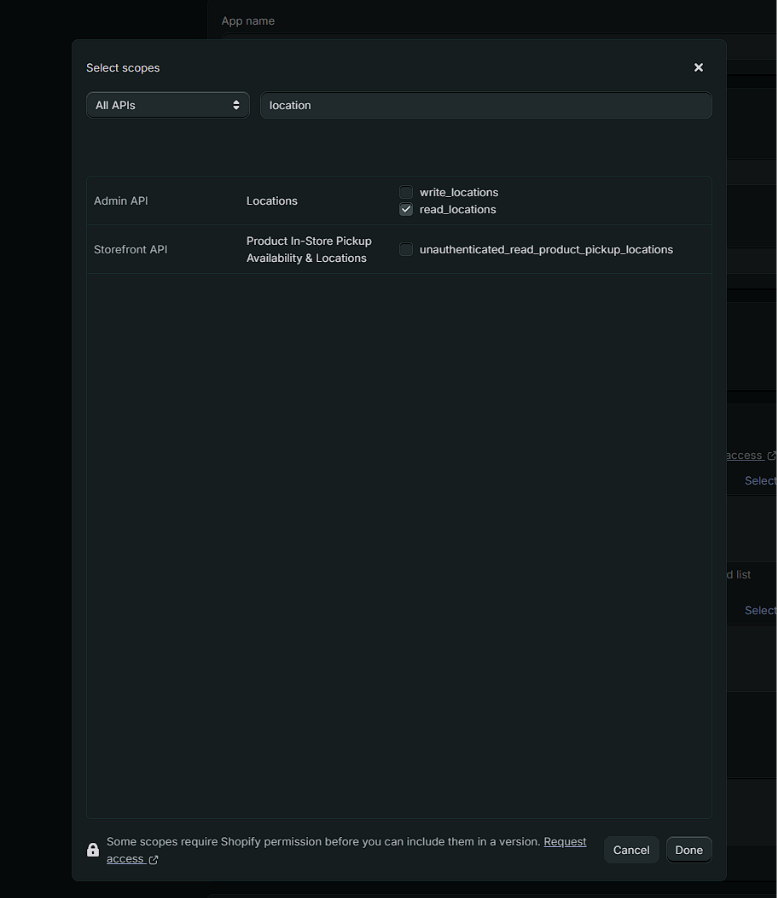
Locations
read_locations
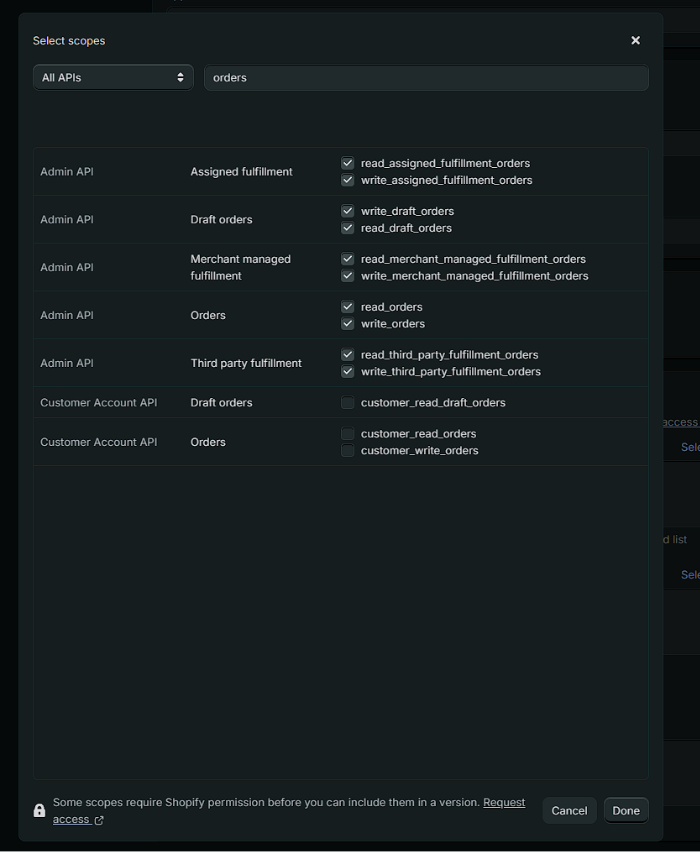
Orders
read_assigned_fulfillment_orders
write_assigned_fulfillment_orders
write_draft_orders
read_draft_orders
read_merchant_managed_fulfillment_orders
write_merchant_managed_fulfillment_orders
read_orders
write_orders
read_third_party_fulfillment_orders
write_third_party_fulfillment_orders
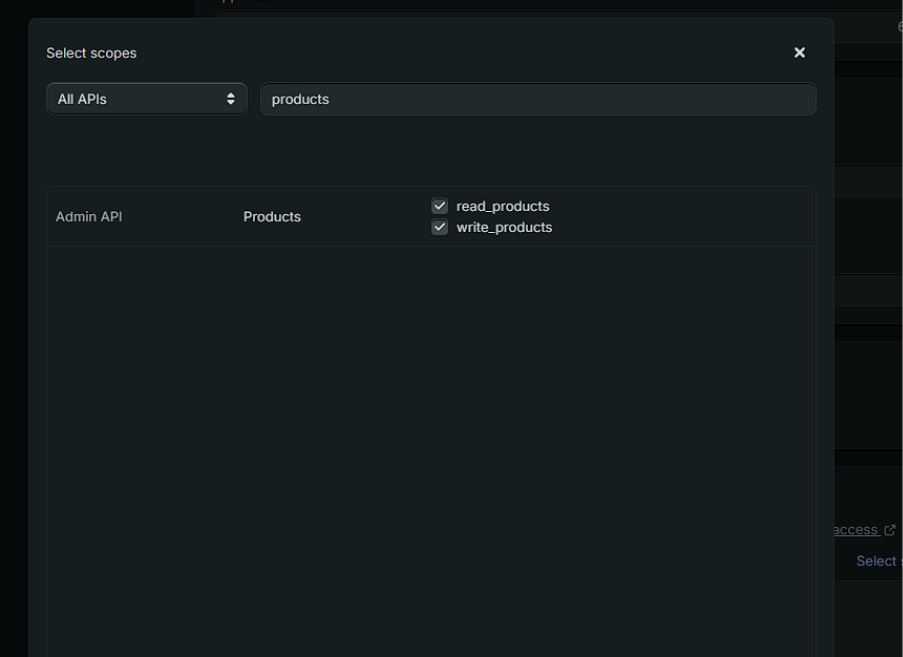
Products
read_products
write_products
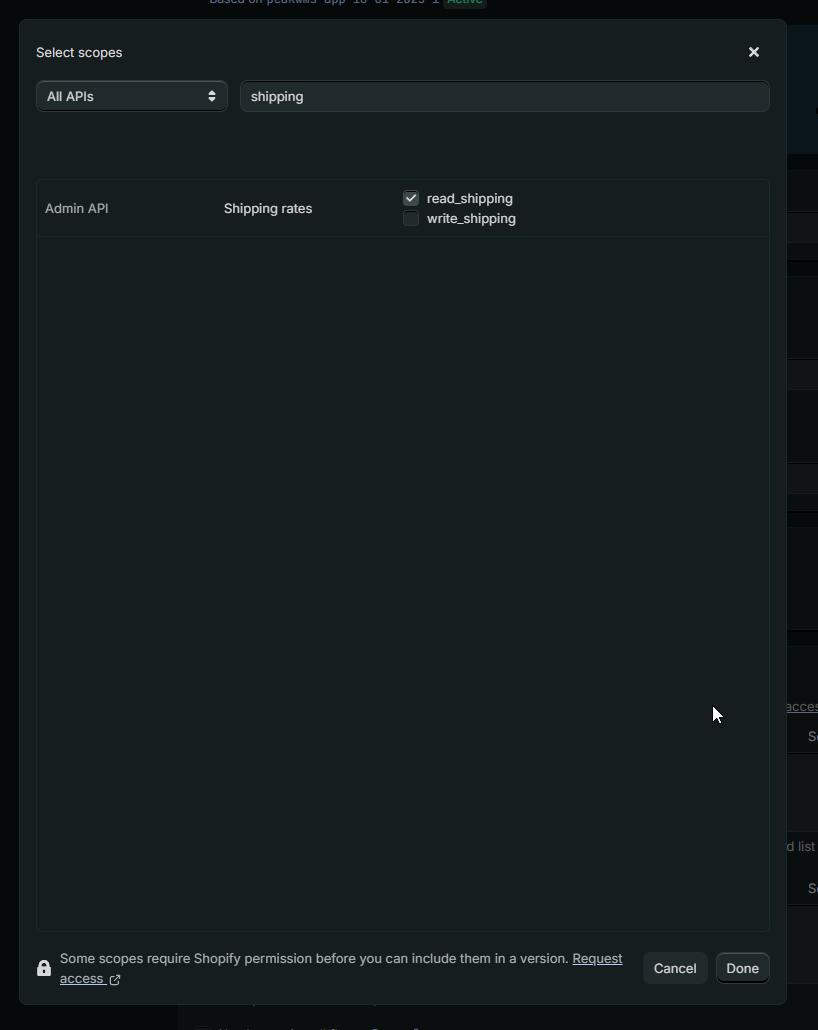
Shipping
read_shipping
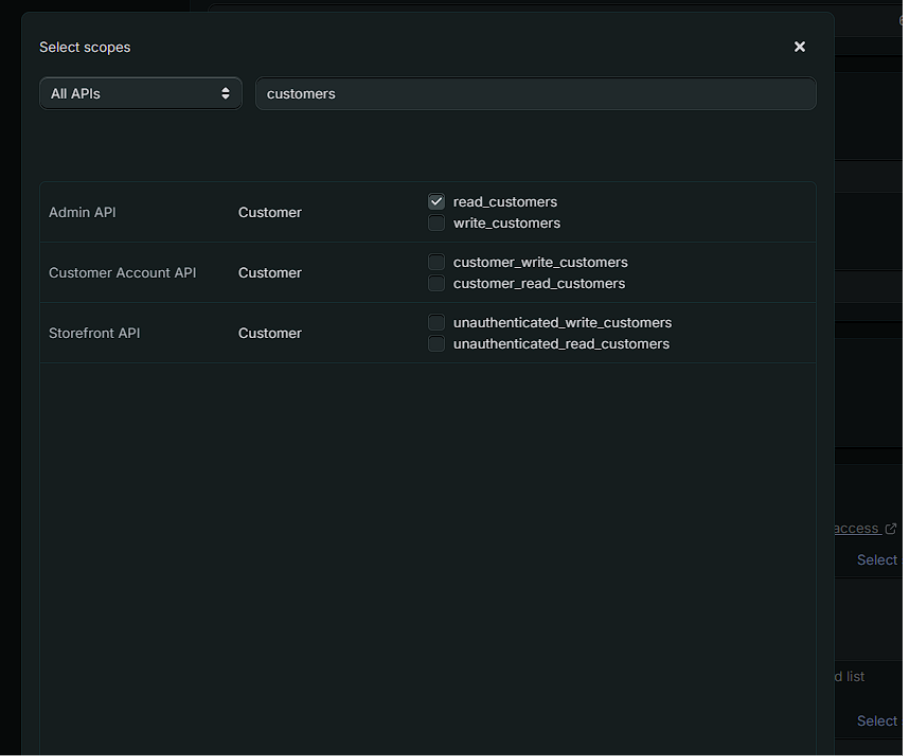
Customers
read_customers
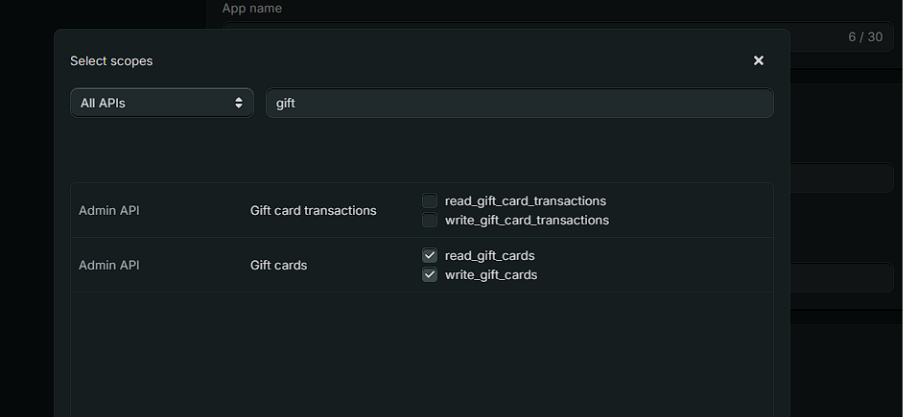
Gift cards
read_gift_cards
write_gift_cards
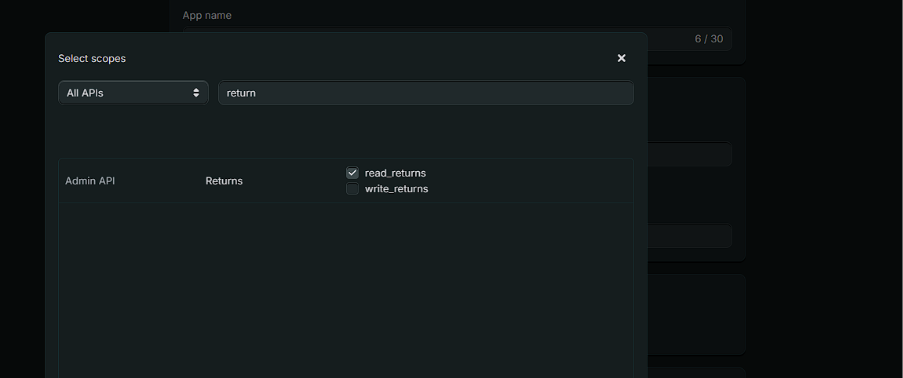
Returns
read_returns
When you have specified the scopes above, click “Done”.
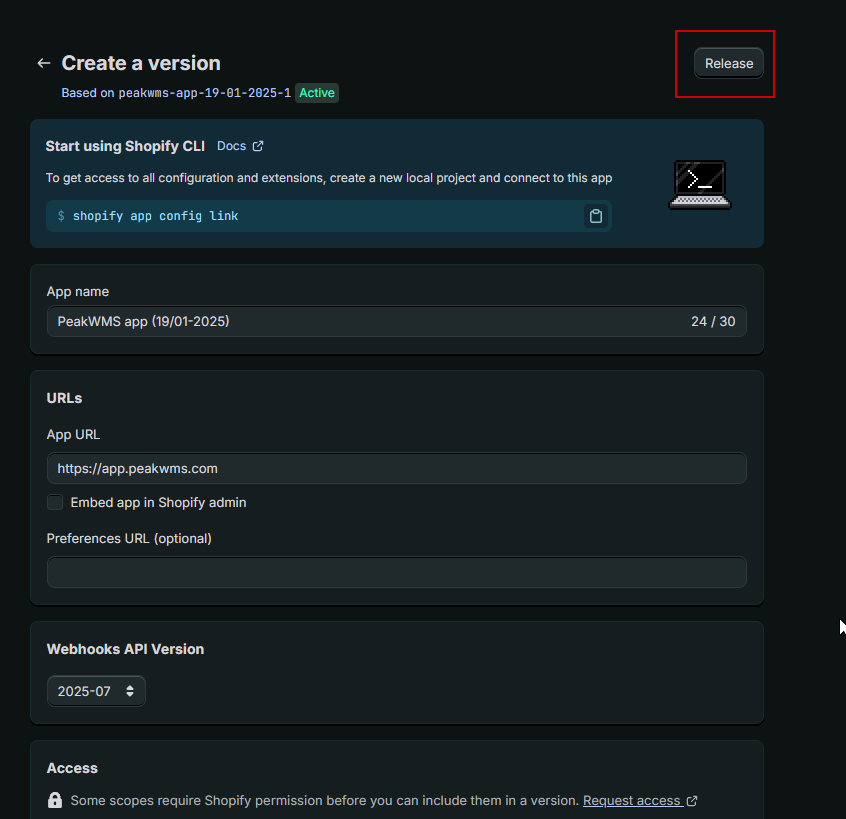
After you have assigned the scopes above to the app, you must release your app. You do this by clicking the “Release” button at the top of the screen.
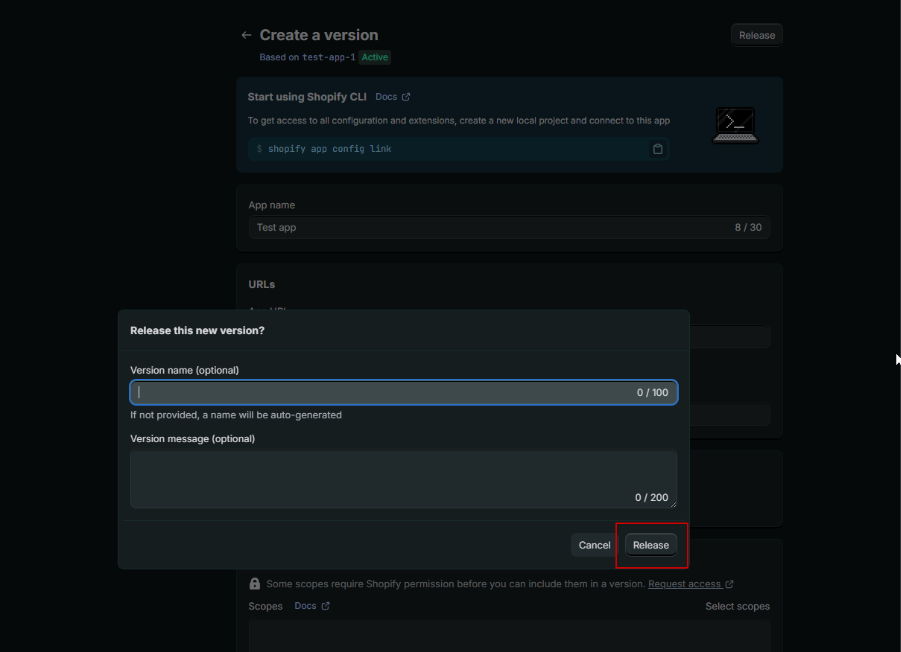
Shopify will then show a pop-up, where you must click “Release” again.
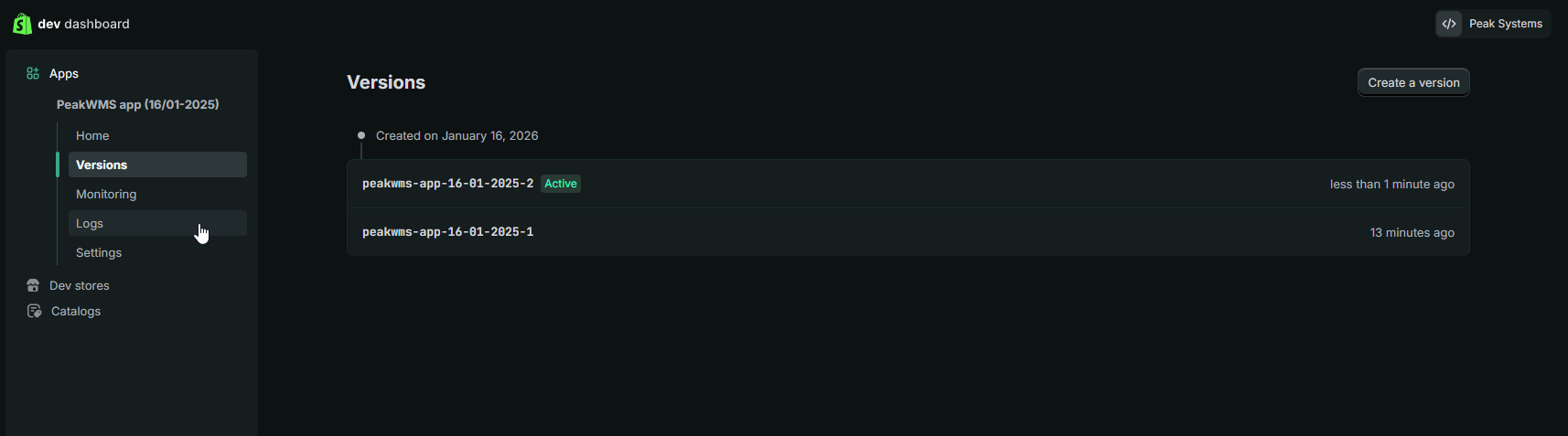
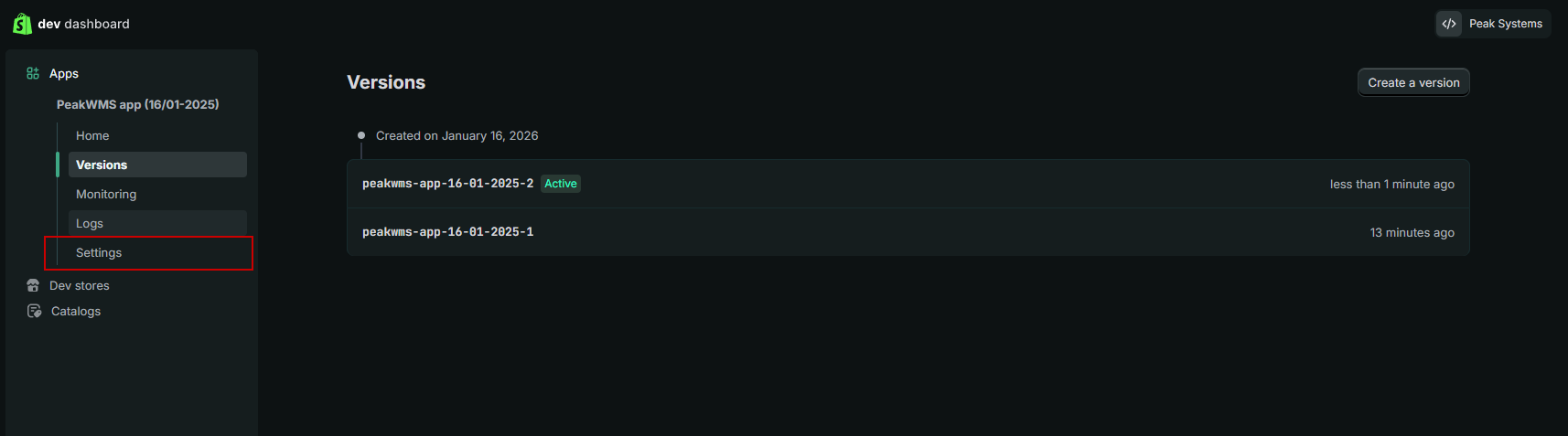
Once your app has been created, you will see a list of the versions of your app.
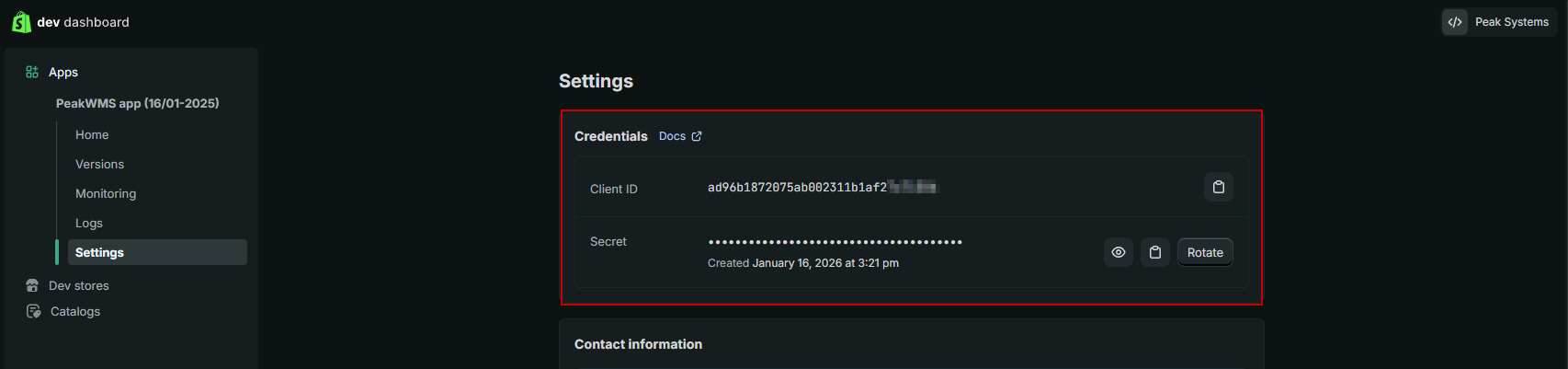
To link your app to your Shopify integration in PeakWMS, you must copy the Shopify Client ID and Client secret from your app. These are used in PeakWMS so that PeakWMS can retrieve an access token for your app and the permissions granted to it.
You can find the Shopify Client ID and Client secret by clicking “Settings”:
You will find the information at the top of the screen:
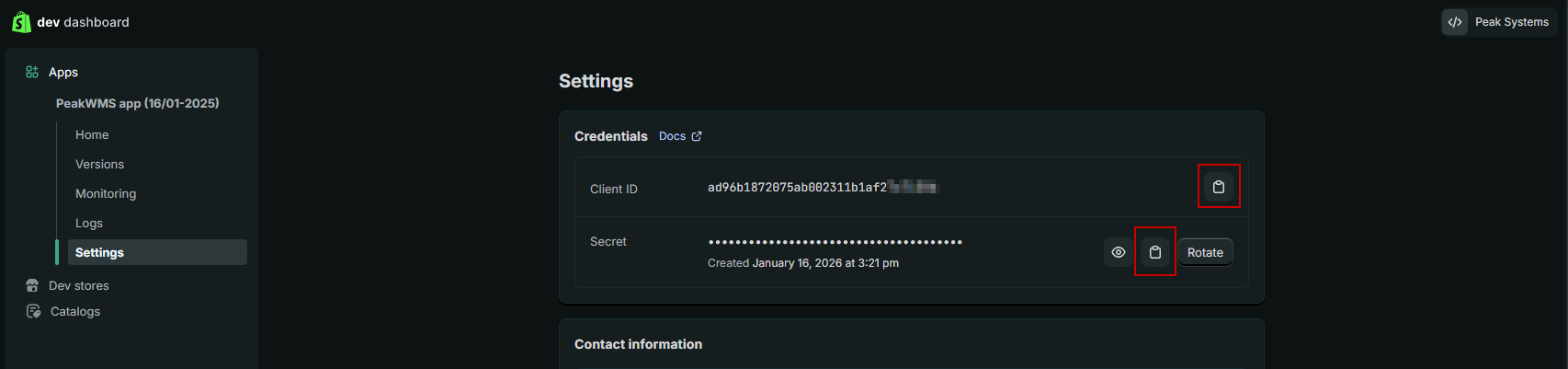
Copy the Shopify Client ID and Client secret by clicking the “copy” icon next to the two fields.
Insert in PeakWMS
The Shopify Client ID and Client secret must be entered in PeakWMS on your Shopify integration under Settings > Integrations > Webshop integration.
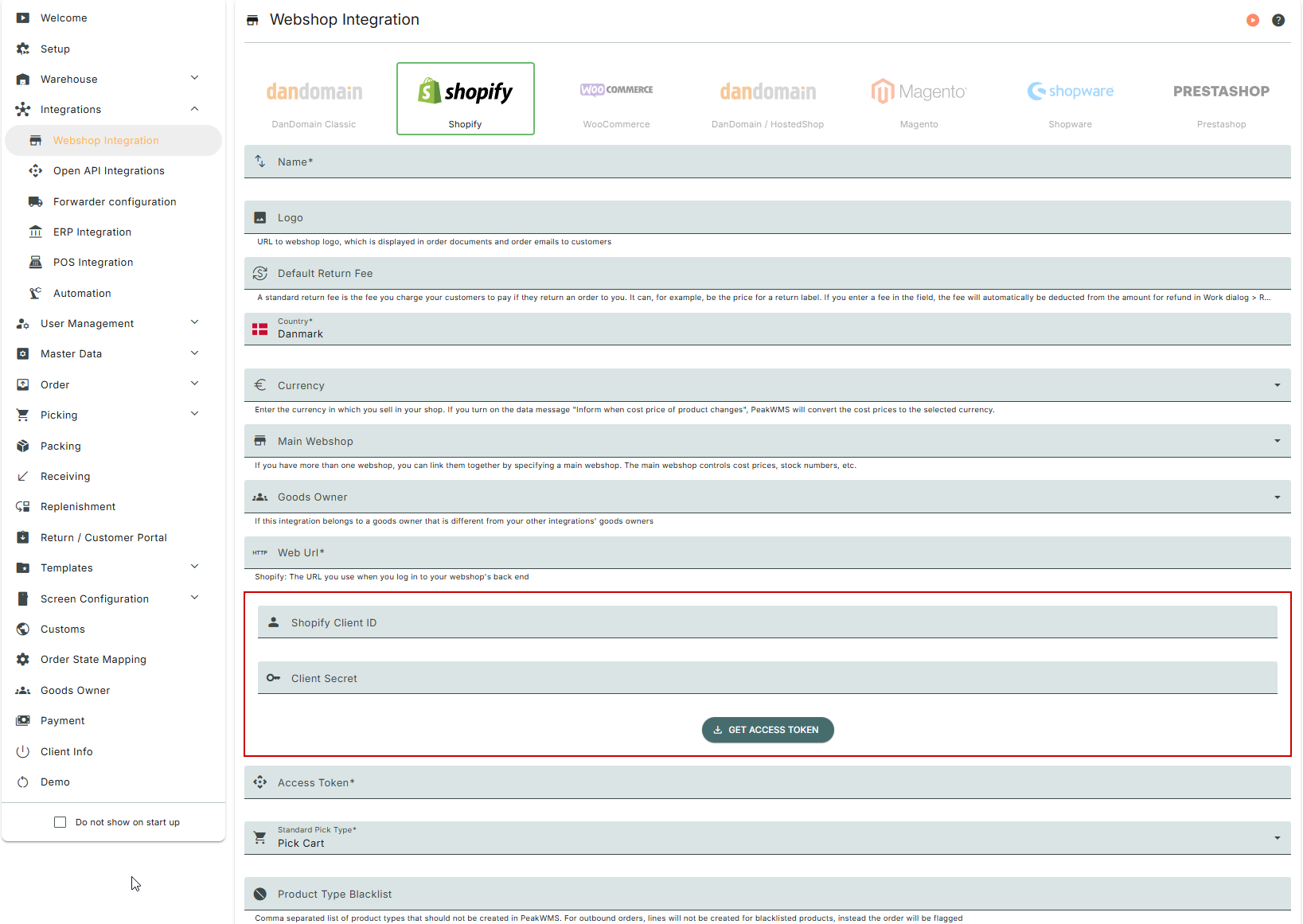
When these have been entered, click “Get access token”. When you click here, PeakWMS retrieves the access token stored in the app in Shopify and automatically fills in your access token in the Shopify integration in PeakWMS.
Remember to save your webshop integration after entering the information.
Var denne artikel nyttig?
Fantastisk!
Tak for din feedback
Beklager, at vi ikke var nyttige
Tak for din feedback
Feedback sendt
Vi sætter pris på din indsats og vil forsøge at rette artiklen