Expected release date: Monday april 27th
INDHOLDSFORTEGNELSE
- General System Updates
- Homerunner: Improved Homerunner Integration for Multiple Parcels per Order
- Shipmondo: Simplified Shipmondo Setup – Removal of “ReturnProductCode”
- Orders: Safer Editing of Order Lines and Correct Stock Sync to Webshops
- Orders: More Control When Orders Are Manually Put on Hold
- Cycle Count: Cycle Count Added to Warehouse Transfers and Replenishment
- Load Units: Easier Search for Load Units With or Without Stock
- Dialogs: “Success” Messages Now Shown at the Top of the Screen
- Worker: New Tool for “Internal Stock Move”
- Worker: Set Minimum Stock in From Warehouse via “Create Replenishment”
- Stocktaking: One Active Store Count per Store Warehouse
- Admin / Stock: ABC Field Added to Stock Items Admin Dialog
- Warehouse Transfer: Dedicated Location for Warehouse Transfers
- Chat System: Layout Adjustments
- OpenAPI
- OpenAPI: Added Support for Cross‑Integration Webhooks
- OpenAPI: Added Detailed Fields to Return Order and Return Line Responses
- OpenAPI / Returns: Return Reason Now Stored as Free Text
- OpenAPI: Added Warehouse Name, Product Description, and Supplier Name to receivedQuantities
- OpenAPI: Filter Purchase Orders via OpenAPI
- OpenAPI: Added SerialNumberControlled Property to Product Endpoints
- Performance Optimizations
- Performance: Faster Display of Cross‑Docking Suggestions with Many Order Lines
- Performance: Faster Bulk Picking with Many Orders
- Performance: Faster Retrieval of Shipping Labels in Single‑Piece Packing
- Performance: Faster StockAdjusts for Products in Multiple Bundles
- Performance: Optimized Performance and UI for Product Popup in Picking
- Bug Fixes
- Returns / Refunds: Returns Without Refund No Longer Blocked by Amount Validation
- Homerunner: Phone Number Formatting
- OpenAPI: Patching Products with Goods Owner Postfix
- Orders: Order Download Works Again
- Orders: Parcel Shop Selection When Manually Creating Orders
- Returns: Fixed Inconsistent Handling of refundAmount in Return Worker
- Admin / Purchase Needs: Improved GraphQL Exception Handling for Missing Permissions
- Admin: CSV Export Failed for Large Data Sets
- Admin / Products: Limited Sorting on Heavy Stock Columns
- Picking: Fixed Picking History Display
- Search: Error When Filtering by Percent Values
- Replenishment: Replenishment Workstation Now Properly Reset
- OpenAPI: Partially Picked Orders on Hold Now Correctly Transition to “Packed”
- LogiSnap: US Shipments Now Correctly Include State
- B2B Pack: Fixed Layout / Design Issue
General System Updates
Homerunner: Improved Homerunner Integration for Multiple Parcels per Order
The Homerunner integration has been updated to use Homerunner’s new Consignments API. This means that all parcels on the same order are now sent together as a single shipment with shared tracking, and labels can be retrieved in one consolidated request.
This provides more robust label handling for multi‑parcel orders, faster label generation, and a better foundation for correct tracking and cancellation of all or parts of a shipment.
Shipmondo: Simplified Shipmondo Setup – Removal of “ReturnProductCode”
We have cleaned up the Shipmondo integration by removing the legacy ReturnProductCode field from both the backend and the settings UI.
Going forward, only the standard return setup (ReturnForwarderProduct) is used. This reduces the risk of configuration errors when setting up returns, and makes freight settings easier to maintain.
Peak Systems has previously sent emails with information about this change, including a guide on how to update your Shipmondo setup to match the new configuration. The most recent email was sent on February 2 to all PeakWMS admins.
Note: The email was only sent to customers where Peak Systems identified setups using ReturnProductCode instead of ReturnForwarderProduct.
If you received the email, please ensure that you update your Shipmondo setup in PeakWMS before release 3.32 is deployed to production, otherwise you will no longer be able to retrieve return labels for your orders.
Excerpt from the email
With release 3.32, scheduled for April 27, 2026, the field “Return Product Code” will no longer be available on shipping methods in the Shipmondo integration.
Today, this field is used to define which shipping method is used when creating return labels. Going forward, this field will be replaced by “Return Shipping Method”.
What do you need to do?
Before April 27, 2026, you must update your Shipmondo shipping methods in PeakWMS so they use Return Forwarder Product instead of Return Product Code.
The Return Forwarder Product field is already available in PeakWMS, so you can make the changes today.
⚠️ Important: If the setup is not updated by April 27, 2026, it will no longer be possible to generate return labels for your orders until the shipping methods are updated.
You can find the guide here: Updating return products for Shipmondo
If you are unsure what to do, please contact our support team by email or via the customer portal.
Orders: Safer Editing of Order Lines and Correct Stock Sync to Webshops
It has been made easier and safer to edit outbound order lines directly in PeakWMS. Users now have access to a simplified “Edit” function containing only fields that do not require manual cleanup, while advanced editing has been moved to a separate admin function so that not all employees have access to edit these fields.
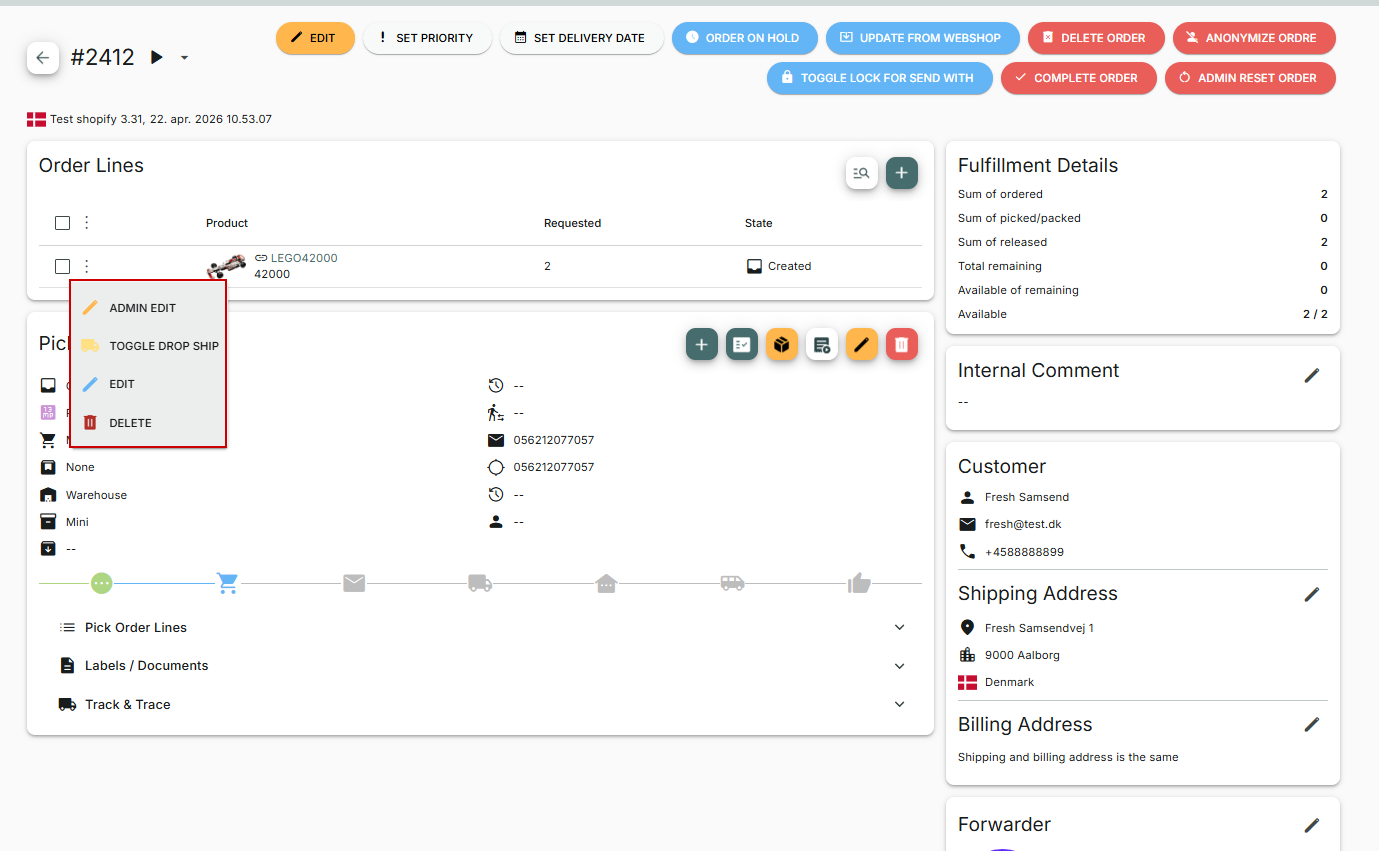
At the same time, we ensure that correct stock updates (StockAdjust) are sent to the webshop when order lines are deleted or quantities are changed on an order directly in PeakWMS. This prevents negative stock levels for items that have been manually edited.
Orders: More Control When Orders Are Manually Put on Hold
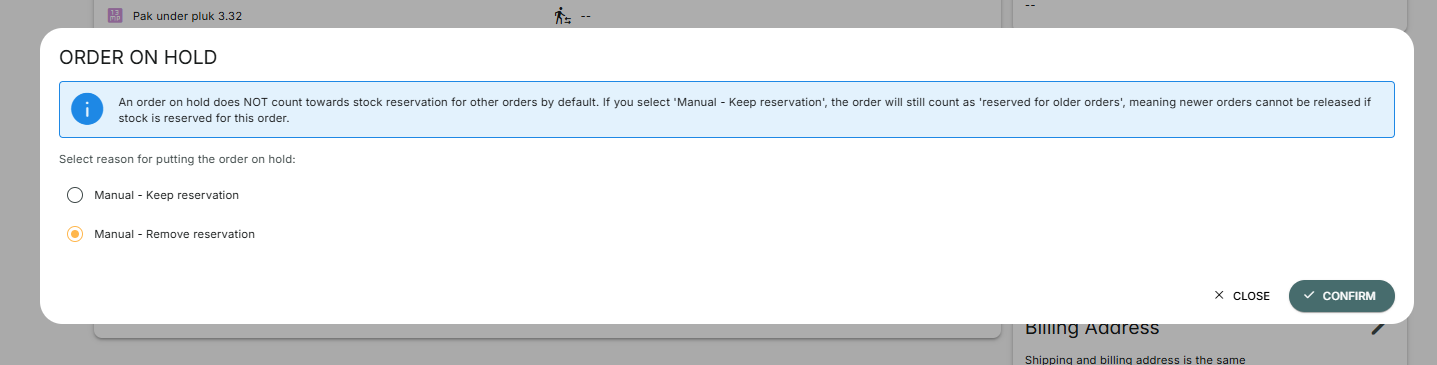
When an order is manually put on hold in PeakWMS, you can now choose whether the reservation of the items should be kept or released. New on‑hold reasons have been added when placing an order on hold directly on the order:
- Manual – Keep reservation
- Manual – Remove reservation
This makes it easier to control whether the order should still count as an “older order” and therefore draw from available stock. This reduces the risk that newer orders consume stock from older orders that were intentionally put on hold.
When you click “Order on hold”, you will now be presented with a screen where you must choose whether to keep or remove the reservation.
- If the reservation is kept, the items remain locked to the order and cannot be taken by other orders.
- If the reservation is removed, newer orders can take the items.
Cycle Count: Cycle Count Added to Warehouse Transfers and Replenishment
The cycle count logic is now used across multiple warehouse tools: picking, replenishment, and warehouse transfers. This gives employees the same options to count and correct inventory directly where they work in PeakWMS, allowing discrepancies to be detected earlier.
The result is more accurate inventory data and fewer surprises between the webshop and the physical warehouse.
Note: The permission in Settings “Cycle count during pick” covers all counting in warehouse tools (picking, replenishment, and stock transfer). If this is disabled, you will not be prompted to count inventory in any of these flows. The setting is available for each warehouse in PeakWMS.
Load Units: Easier Search for Load Units With or Without Stock
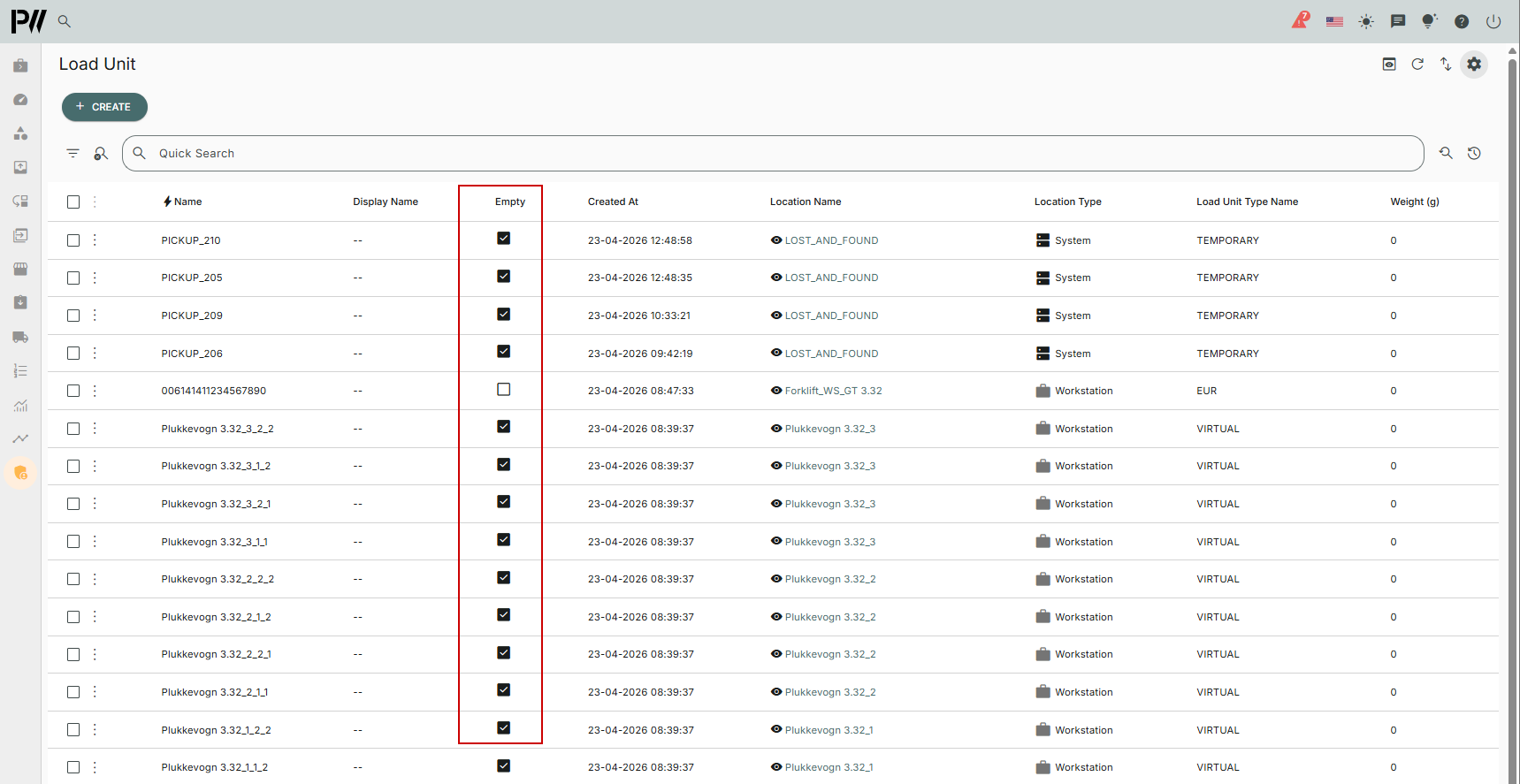
In the Load units admin dialog, you can now filter and search for load units based on whether they are empty or contain stock items. This makes it faster to find “forgotten” boxes with stock items, that are not connected to a picking cart or packing station, helping clean up inventory and align it better with the webshop.
You can find the field under Admin > Storage > Load Unit.
The field is currently hidden and must be added via Table Settings in the dialog. The field is called “Empty”:
- Checked = the load carrier is empty
- Unchecked = items are registered on the load carrier
Dialogs: “Success” Messages Now Shown at the Top of the Screen
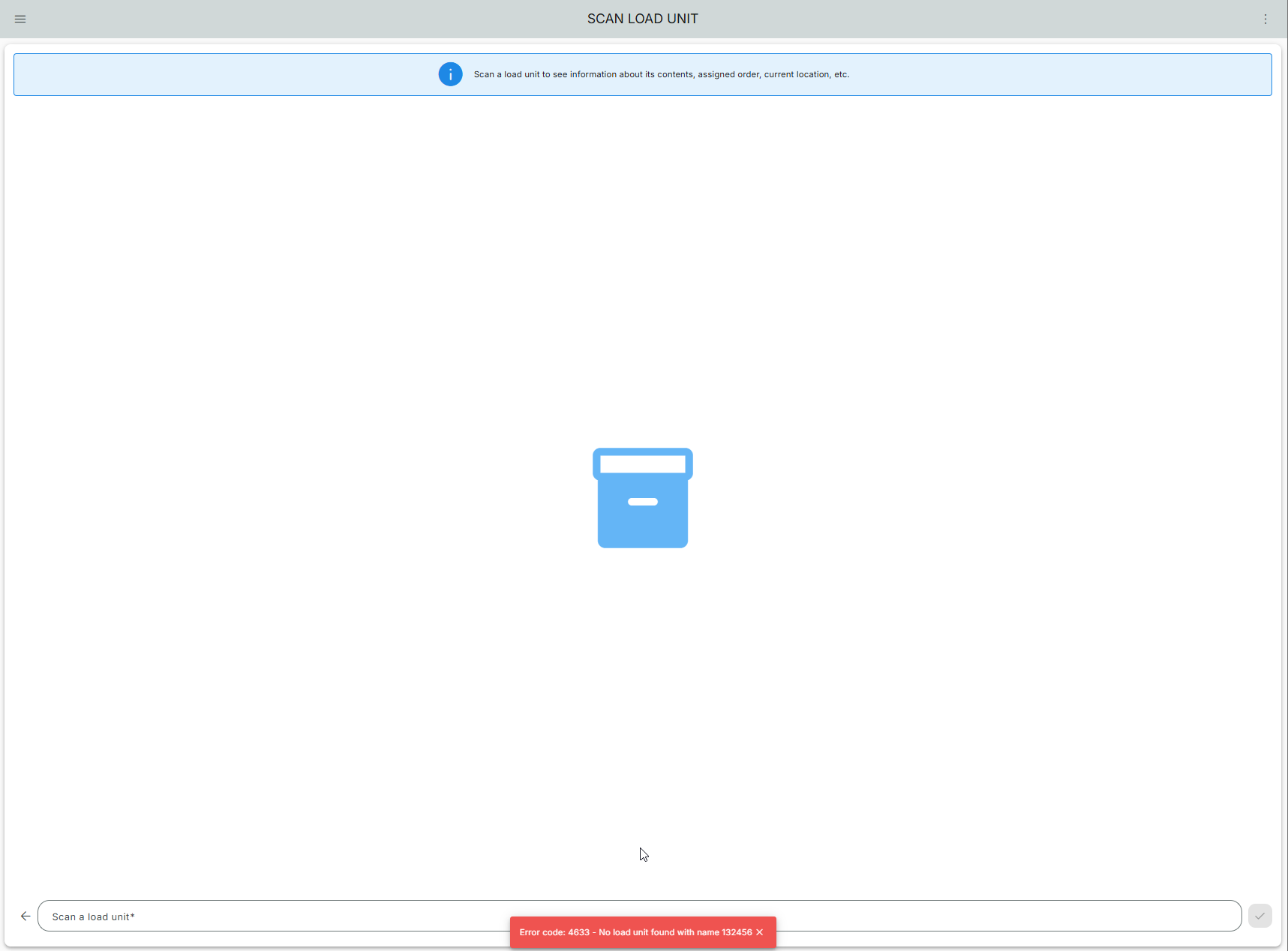
Previously, all system messages—both errors and successes—were shown at the bottom of the screen. This has been partially changed so success messages no longer block users from continuing their work.
Success messages are now displayed at the top of the screen, allowing users to continue working immediately after a success message is shown. This applies, for example, to messages shown when scanning products during packing or scanning correct shipping label.
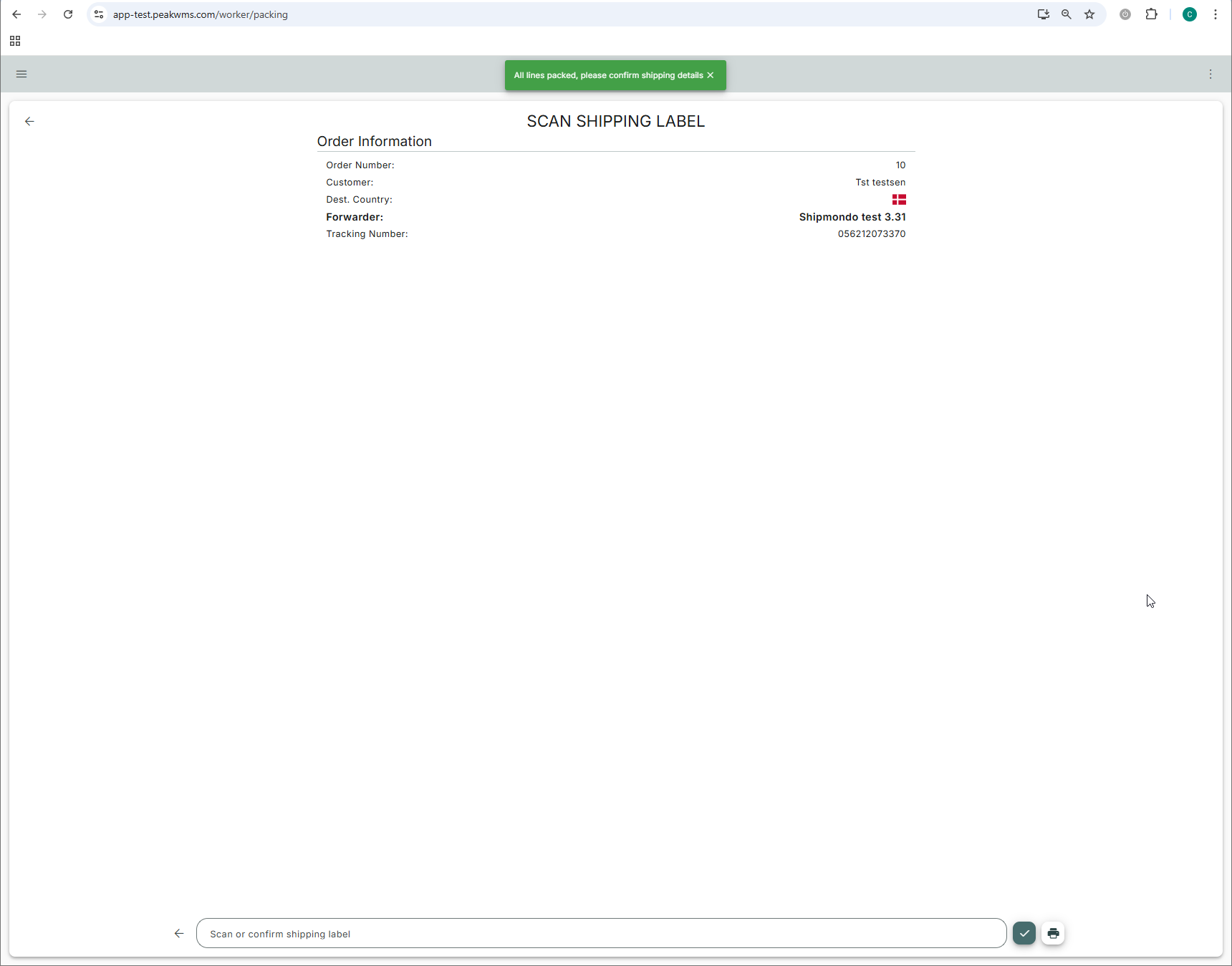
Error messages are still shown at the bottom of the screen, as these usually require user action and must be clearly acknowledged.'
Worker: New Tool for “Internal Stock Move”
A new worker flow has been introduced to make internal stock moves faster and easier. This flow is an alternative to the existing moving-flow, that you find under Tools > Stock, which requires more steps. The existing inventory transfer flow continues to work as before.
In the new Internal Stock Move flow you follow these steps:
- Select the warehouse you want to work in
- Scan a source location (the stock item you want to move must be located here)
- Scan one or more products (one item per scan; quantity can also be adjusted manually)
- Scan the destination location
You should note, that only one input field is used—both for scanning products and the destination location. If you scan a location directly, you will not be asked to confirm the scanned location, as the direct scan is seen as confirmation. If you scan a rack, the rack animation will appear so you can select the target location.
Worker: Set Minimum Stock in From Warehouse via “Create Replenishment”
New functionality allows you to create and maintain minimum stock in the from warehouse directly from the Create Replenishment tool. This enables configuring warehouse transfer configurations directly on the handheld device.
You can also import "Min. in from warehouse" via Warehouse Transfer > Warehouse Transfer Configurations.
In Create Replenishment, open the three‑dot menu for a product and select Add or edit min/max.
The minimum source stock field is now available at the bottom of the dialog and is saved to the stock transfer setup for the selected product and warehouse.
Stocktaking: One Active Store Count per Store Warehouse
PeakWMS now prevents multiple open store stocktaking orders in the same warehouse at the same time. This avoids errors where multiple store stocktaking orders could lead to incorrect inventory numbers, as PeakWMS does not continuously update webshop stock during store‑type stocktaking.
Multiple store stocktaking orders can still be created per warehouse, if they are created in state draft, but only one can be open at a time. Once a store stocktaking order is closed, another can be opened.
Multiple warehouse stocktaking orders can still be open simultaneously, as these continuously send StockAdjusts to the webshop.
Admin / Stock: ABC Field Added to Stock Items Admin Dialog
The ABC classification field has been added to the Stock items admin dialog. You can now view, search, and filter by a product’s ABC classification directly in the stock items overview—without manual Excel-work.
This makes it easier to prioritize items based on turnover and focus on the most important products in your warehouse.
The column is called “ABC classification” and can be added via Table Settings.
Warehouse Transfer: Dedicated Location for Warehouse Transfers
When a load unit is assigned to a warehouse transfer, it is now rebooked to a dedicated outbound transfer location (WAREHOUSE_TRANSFER_OUTBOUND) in the source warehouse, instead of the general Lost and Found location, that has been used previously.
The location is of the type UNMANAGED_STORAGE and is marked with IncludeInStockAdjustForWebshop = true, ensuring correct stock updates to webshops and external systems.
Existing data is automatically migrated: any load units currently in Lost and Found with an active warehouse transfer are moved to the new location. This makes it easier to distinguish between unused load units and those involved in an active transfer.
Chat System: Layout Adjustments
The chat layout has been fine‑tuned. The spacing between usernames and message text has been reduced, while spacing between chat bubbles has been increased. Names and text are now better centered relative to the avatar circle.
This results in a cleaner, more readable chat view and makes it clearer who you are chatting with.
OpenAPI
OpenAPI: Added Support for Cross‑Integration Webhooks
You can now create webhooks where the source integration is selected based on a specified webshop URL—even if the webhook’s target is another integration.
This feature is only available for integrations allowed to access cross‑integration data and is documented in the OpenAPI. It enables technical partners to configure return and order flows more precisely without manual workarounds.
OpenAPI: Added Detailed Fields to Return Order and Return Line Responses
The OpenAPI has been extended with new details for return orders and individual return lines. New fields cover status, refund amounts, who processed the return, and timestamps for both receipt and refund.
This provides a more complete overview of how returns are handled and ensures accurate synchronization of refund and handling data across systems.
OpenAPI / Returns: Return Reason Now Stored as Free Text
The internal link between return order lines and the fixed return‑reason table in the return portal has been removed. Instead, the return reason is now stored as free text directly on the return order line—whether created via OpenAPI or via PeakWMS return flows.
This makes return orders more robust against configuration changes in the return portal and makes it easier for integrations to send and read the exact return reason.
OpenAPI: Added Warehouse Name, Product Description, and Supplier Name to receivedQuantities
The receivedQuantities endpoint has been extended with three new fields:
- Warehouse name
- Product description
- Supplier name
You can also filter by a specific warehouse using the new warehouseName query parameter. This provides better insight into what was received, from whom, and where—and helps plan staffing and tasks accordingly.
OpenAPI: Filter Purchase Orders via OpenAPI
The endpoint GET /openApi/purchaseOrder/state/{state} has been extended with new date filters. Integrations can now retrieve purchase orders created or updated within a specific time range (for example, “since last sync”) instead of always fetching all orders.
This reduces data volume and improves performance and stability, especially for webshops with many purchase orders.
OpenAPI: Added SerialNumberControlled Property to Product Endpoints
A new SerialNumberControlled property has been added to all product endpoints. This allows you to create, update, and retrieve product data indicating whether a product is serial number controlled—giving you full control over serial number handling directly via the API.
Performance Optimizations
Performance: Faster Display of Cross‑Docking Suggestions with Many Order Lines
The GetCrossDockingInfoForLine call has been optimized to scale better when many order lines for the same item are on hold. Previously, the database query executed a heavy sub‑query for each potential line, which in some cases resulted in response times of more than one minute.
The logic has now been split and rewritten so valid cross‑docking lines can be identified and sorted much more efficiently. The result is significantly faster response times in goods receiving, especially for items with many open order lines.
Performance: Faster Bulk Picking with Many Orders
The internal search for bulk pick orders has been optimized so PeakWMS now retrieves only the data that is actually relevant per order line. The system now works solely with the fields required for grouping orders (CutOffTime, PickOrderId, and MaterialId).
This results in faster response times and a more responsive experience, especially when searching and planning bulk picking for very large order sets with many orders.
Performance: Faster Retrieval of Shipping Labels in Single‑Piece Packing
We have optimized the way shipping labels are retrieved in the Single Piece packing flow. Documents are now fetched more directly, allowing labels to be displayed and printed faster—especially at busy packing stations.
Performance: Faster StockAdjusts for Products in Multiple Bundles
PeakWMS now uses a single bulk call instead of many individual calls when a product is part of multiple bundles. This provides faster StockAdjusts and more stable performance in integrations with ERP-systems, webshops, and OpenAPI—particularly for items included in many bundles.
Performance: Optimized Performance and UI for Product Popup in Picking
The product popup shown during picking when the wrong product is scanned has been improved so it no longer blocks the user while product data is loading. The confirmation button is now available immediately, allowing the picker to continue without waiting for slow product data loading.
At the same time, loading of product data itself has been optimized, so the popup opens noticeably faster.
Bug Fixes
Returns / Refunds: Returns Without Refund No Longer Blocked by Amount Validation
A bug caused returns to fail if the calculated return total exceeded the original order amount—even when the line action was set to “Return without refund”.
The amount‑based validation is now skipped when Return without refund is used, allowing the return to be completed as intended.
Homerunner: Phone Number Formatting
We have fixed an issue in the Homerunner integration where phone numbers starting with the same digits as the country code (e.g. 47) were incorrectly sent to Homerunner (for example, 47xxxxxx became +47xxxxxx instead of +47 47xxxxxx).
Phone numbers are now properly validated and formatted, ensuring correct contact details on shipping labels and notifications.
OpenAPI: Patching Products with Goods Owner Postfix
When patching products via OpenAPI for a specific goods owner, the goods owner postfix is now handled correctly. Previously, PeakWMS could append the postfix multiple times during patch calls (e.g. #VE became #VE#VE).
This has been fixed so the postfix is only added if it is missing. Existing SKUs and item numbers remain unchanged.
Orders: Order Download Works Again
An issue prevented orders from being downloaded due to an error in the integration dialog. This was caused by several fields being made mandatory in the latest feature release.
If an integration was typed directly into the field instead of being selected via the lookup icon, manual order retrieval failed. This has now been fixed, and it is once again possible to search directly in the field to find the integration.
Orders: Parcel Shop Selection When Manually Creating Orders
We fixed an issue that temporarily removed the ability to specify a parcel shop ID when manually creating orders in PeakWMS.
The parcel shop ID field is now visible again, allowing orders to be accurately linked to specific parcel shops during order creation.
Returns: Fixed Inconsistent Handling of refundAmount in Return Worker
An issue in the return worker caused the refund amount (refundAmount) to sometimes differ from the expected value—especially when the return order line had no return reason (ReturnReason = null).
Return fields are now populated consistently and null‑safe in GetOrderDataForReturn, ensuring that the selected line action (e.g. NO_MONEY_BACK or REPLACE) is always correctly reflected in the refund calculation. This ensures consistent return handling even when no return reason is specified.
Admin / Purchase Needs: Improved GraphQL Exception Handling for Missing Permissions
GraphQL exception handling for purchase needs calculations has been improved so users without permission to access packaging‑unit data, no longer encounter technical crashes.
Instead, a clear error message is now shown when data such as material.selectedPackagingUnit.quantity cannot be retrieved due to missing permissions. This prevents the dialog itself from failing and makes the issue clearer to the user.
Admin: CSV Export Failed for Large Data Sets
We fixed an issue where exporting large datasets (e.g. 60.000+ rows) could fail or time out.
Exports now retrieve data in smaller chunks (10.000 at a time), and the GraphQL timeout has been increased to 10 minutes. This ensures stable and fast exports, even for very large datasets.
Admin / Products: Limited Sorting on Heavy Stock Columns
Performance in the Products dialog has been improved to prevent sorting on stock‑related columns from causing searches to stall when no search filter is applied.
Going forward:
- Heavy stock columns can only be sorted when a search is active
- Removing the search criteria resets sorting to the default column
- An icon with a short explanation is shown for columns that require a search before sorting
This results in a faster and more stable experience when working with large product catalogs.
Heavy stock‑related columns include:
AvailableOnStockAvailableToSellOrderedByCustomersOrderedFromVendorReservedForPick
Picking: Fixed Picking History Display
For orders or pick tours with many lines, not all picking history entries were previously shown. This made it difficult to assess whether additional load units were needed or to verify picking accuracy.
After the fix, all picking history lines are displayed again, giving pickers and managers full visibility—even for large orders.
Search: Error When Filtering by Percent Values
PeakWMS previously returned an error when filtering on percentage‑based columns, such as “Received %” on purchase orders. This made it impossible to search for, for example, purchase orders with 25% received.
This has been fixed, and filtering by percentage values now works as expected.
Replenishment: Replenishment Workstation Now Properly Reset
After completing a replenishment order, users were returned to the configuration selection screen, but selecting a new configuration resulted in an error indicating that the workstation was still marked as “active”.
PeakWMS now correctly resets the workstation upon completion, allowing a new replenishment to be started immediately.
OpenAPI: Partially Picked Orders on Hold Now Correctly Transition to “Packed”
We fixed an issue where orders that were partially picked and in state on hold did not always transition to “packed” after partial deliveries.
Even though all order lines were marked as packed, the order could remain in on hold status. This is now resolved, ensuring correct status transitions and reducing manual follow‑up.
LogiSnap: US Shipments Now Correctly Include State
An issue in the LogiSnap integration prevented booking shipments to US addresses because the required State field was missing in the address information.
This has been fixed so the State field is now correctly included for both sender and recipient when booking shipments via LogiSnap.
B2B Pack: Fixed Layout / Design Issue
We fixed a layout issue in B2B Pack where the design appeared broken and elements were not displayed or positioned correctly.
The B2B Pack view now appears consistent and correct again, making it easier to get an overview and work efficiently in the interface.
Var denne artikel nyttig?
Fantastisk!
Tak for din feedback
Beklager, at vi ikke var nyttige
Tak for din feedback
Feedback sendt
Vi sætter pris på din indsats og vil forsøge at rette artiklen